Voice messages
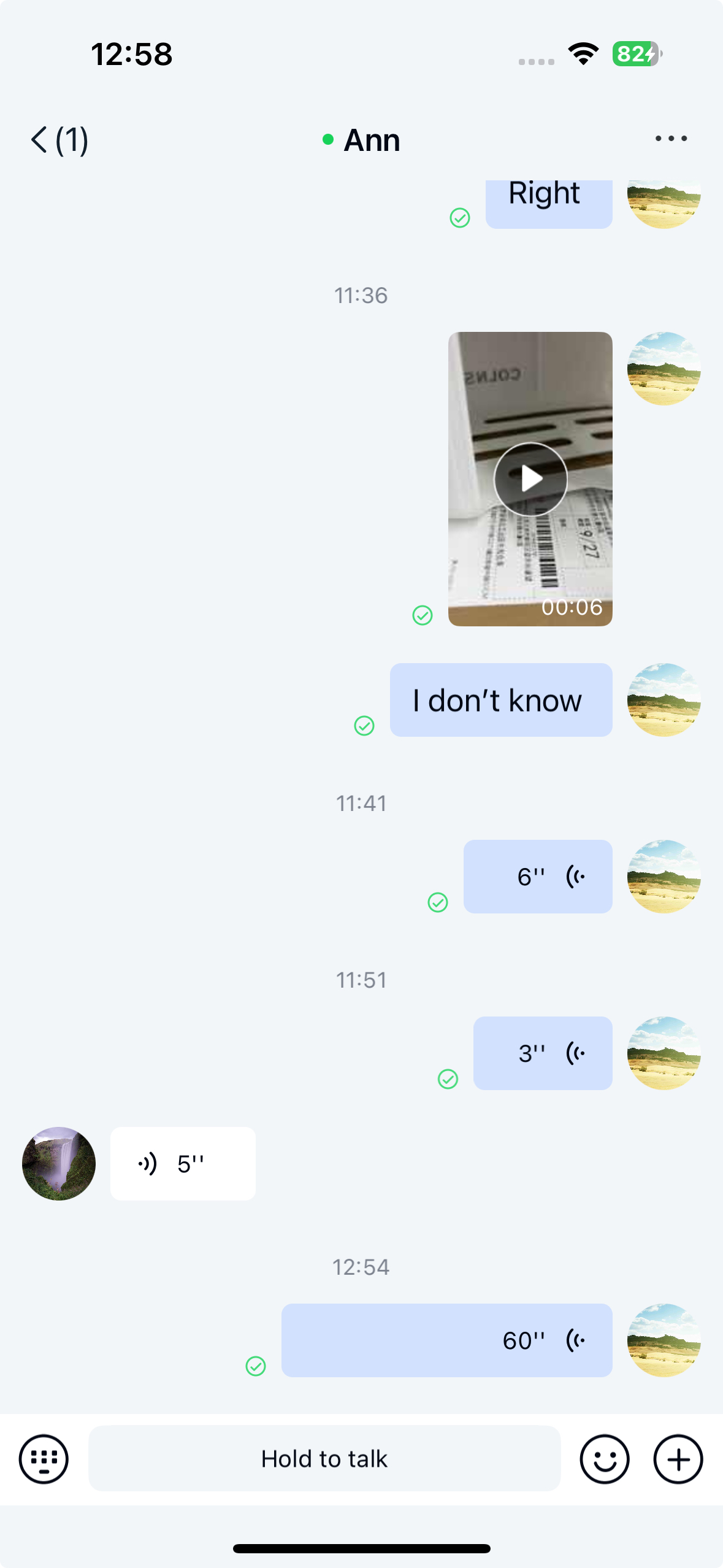
Users can record and send voice messages through Chat UI's built-in input component. The messages appear in the message list component of the channel view. By default, the SDK generates and sends messages containing high-definition voice message objects NCHDVoiceMessage .
Limitations
The voice input feature currently has these restrictions:
- Chat UI only supports sending voice messages in direct channels and group channels.
- Audio recordings must be at least 1 second and no longer than 60 seconds.
- Users cannot pause while recording a voice message.
- Voice messages cannot be sent during active video or voice calls.
Usage
Chat UI enables voice message input by default in the input bar component, which includes a toggle button for switching to voice input.
Sending voice messages
To send a voice message, users must first record it using NCVoiceCaptureControl in the input bar. By default, the voice message icon appears on the left side of the input field. Tapping this icon reveals the record button ("Hold to Talk"). Users press and hold this button to record.
Recordings must be between 1 and 60 seconds. Messages shorter than 1 second are discarded when the stop button is tapped. During recording, users can swipe up to cancel or abort the cancellation. Releasing the button sends whatever was recorded up to that point. Previewing before sending is not supported, and playback cannot be paused.
Voice message types
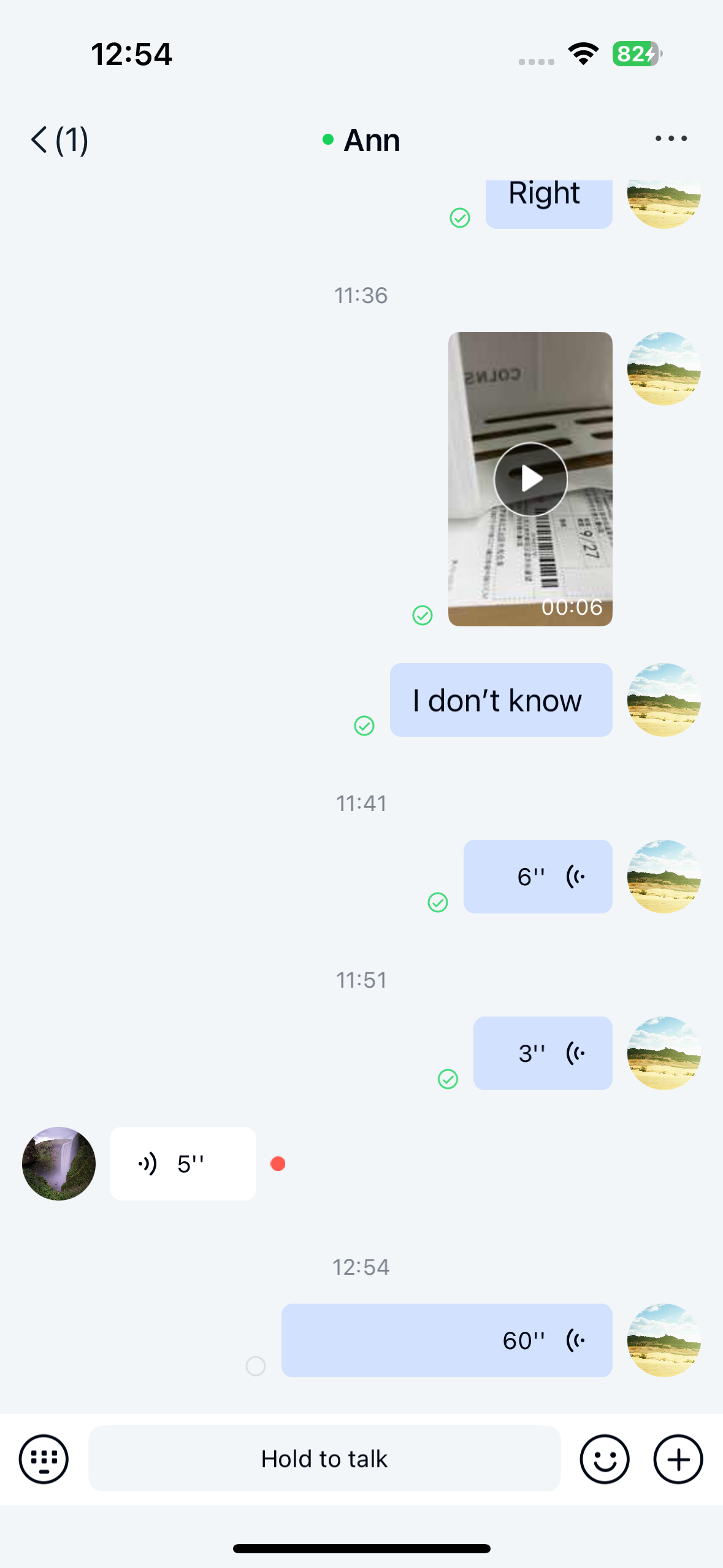
Voice messages in the message list
You can receive voice messages in direct channels, group channels, and system channels. They appear in the message list.
Users tap the play button to listen. Unplayed messages show a red dot and can be replayed multiple times. However, voice messages can only be played within the client app and cannot be saved to the device.
Only one audio file can play at a time in a channel view. Attempting to play another message pauses any currently playing message.
By default, Chat UI downloads high-definition voice messages and automatically plays subsequent unplayed messages after the current one finishes. You can disable this behavior before displaying the channel view by setting NCChannelViewController's enableContinuousReadUnreadVoice property:
// `NO` disables continuous playback
chatVC.enableContinuousReadUnreadVoice = NO;
[self.navigationController pushViewController:chatVC animated:YES];
Customization
Customizing voice messages involves modifying the voice input toggle icon, audio recording interface, and HD voice message display UI.
Customizing voice message UI
Chat UI generates and sends HD voice messages by default. Use NCMessageType.hdVoice when you need the message type identifier instead of hard-coding the underlying wire protocol value. Chat UI displays HD voice messages in the message list using the NCHDVoiceMessageCell template.
All message templates inherit from NCMessageCell. Custom message cells must also subclass NCMessageCell. See Modifying message display styles.
You can also replace style resources, string resources, and icon resources referenced in the voice message display template within NCChatUI.bundle. Refer to resources used in NCHDVoiceMessageCell.m in the Chat UI source code.
Input bar and recording popup resources
You can replace style resources related to the input bar and recording popup in NCChatUI.bundle. The table below lists some icons.
| Icon | Image | Description |
|---|---|---|
| inputbar_voice |  | Toggle button for switching to voice message recording view. inputbar_voice_dark is the dark mode variant. |
| voice_unread |  | Indicates unread status for sent HD voice messages. |
For more icon resources, see NCHDVoiceMessageCell.m, NCVoiceCaptureControl.m and others in the Chat UI source code.
Handling recording events
Chat UI provides these recording-related events in NCChannelViewController that you can override for custom behavior:
(void)onBeginRecordEvent;: Triggered when voice recording starts(void)onEndRecordEvent;: Triggered when voice recording ends(void)onCancelRecordEvent;: Triggered when recording is canceled (does not triggeronEndRecordEvent)
See Page event listeners.
Hiding the voice input toggle button
After viewDidLoad in the channel view, you can modify the input toolbar style NCChatSessionInputBarControlStyle via NCChannelViewController's chatSessionInputBarControl property to remove the voice/text toggle button:
NCChatSessionInputBarControlStyle style = NC_CHAT_INPUT_BAR_STYLE_CONTAINER_EXTENTION;
[self.yourChatVC.chatSessionInputBarControl setInputBarType:NCChatSessionInputBarControlDefaultType style:style];