File messages
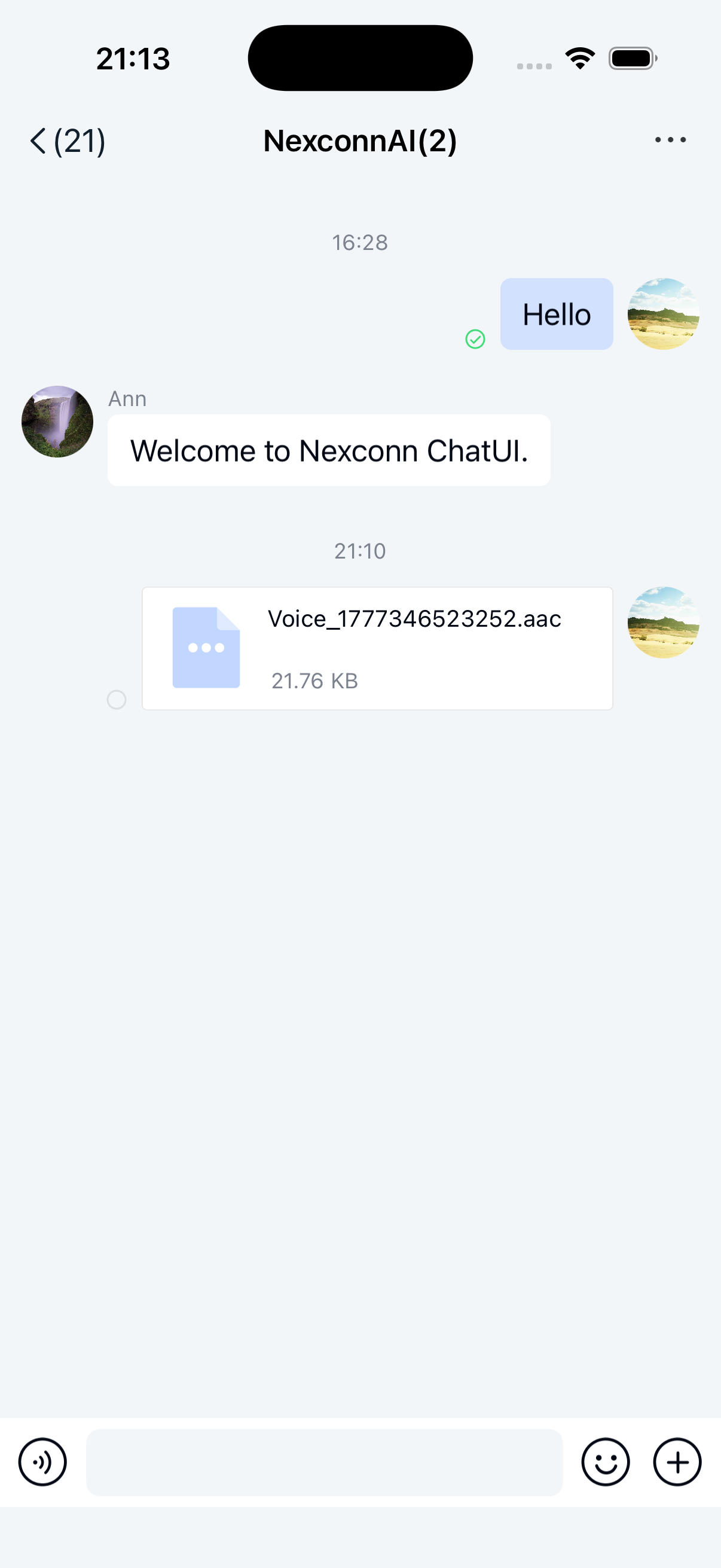
You can send file messages using the built-in file plugin in Chat UI. These messages will appear in the message list component of the channel page. By default, the file plugin sends messages containing the file message content object NCFileMessage .
Limitations
- Only supports sending local files
- Files in file messages are uploaded to Nexconn servers by default. To upload to your own server, you need to intercept the message and handle the upload yourself. See Intercepting messages
- File preview is not supported in Chat UI - users must open files in other applications
Usage
The built-in File plugin in Chat UI implements the file message functionality in the extension panel. However, for backward compatibility, this feature is not enabled by default in the SDK.
Add the following code in the channel page's viewDidLoad to enable file sending:
Sample code
[self.chatSessionInputBarControl.pluginBoardView insertItem:NCResourceImage(@"plugin_item_file")   highlightedImage:NCResourceImage(@"plugin_item_file_highlighted")
title:NCUILocalizedString(@"File")
atIndex:3
tag:PLUGIN_BOARD_ITEM_FILE_TAG];
Sending file messages
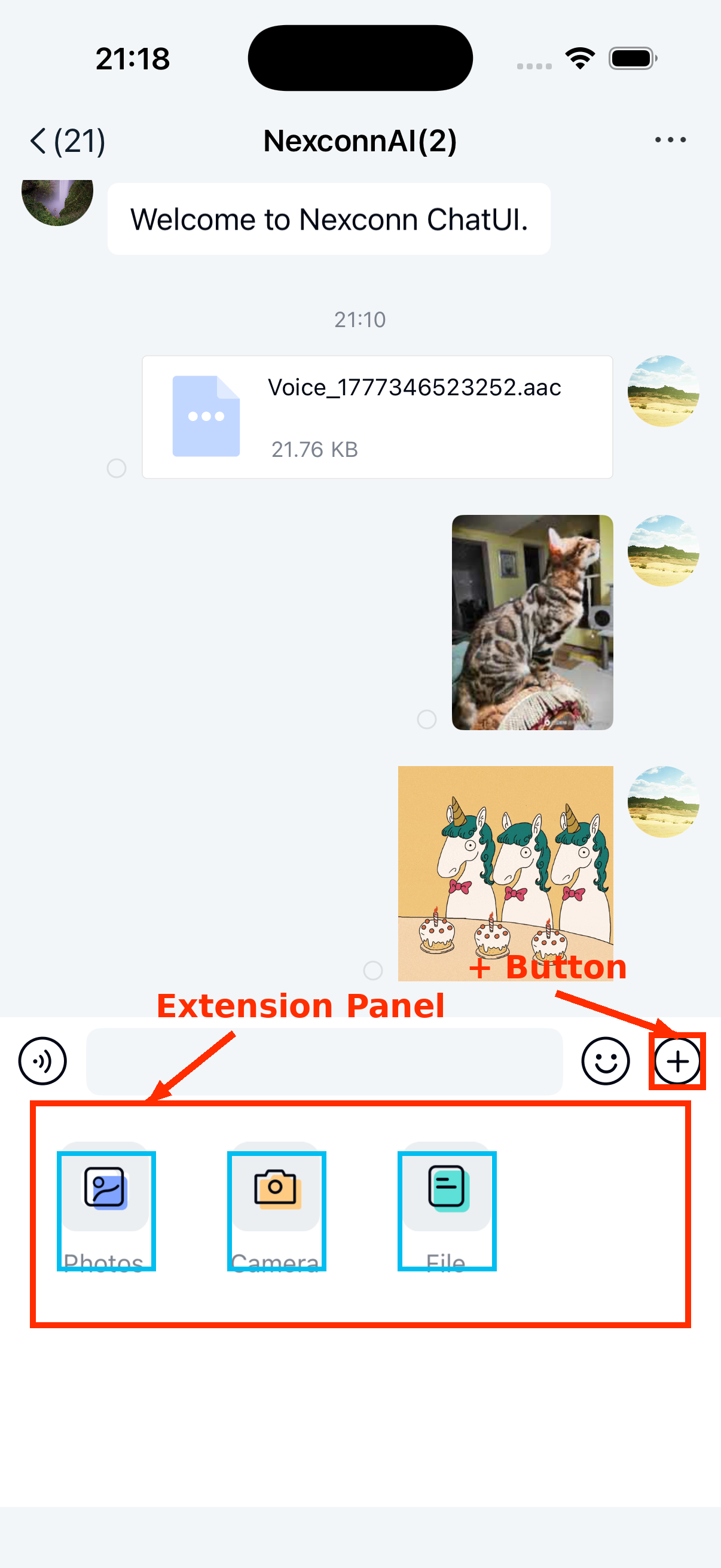
After enabling file messages, the file message option will appear in the extension panel. Users can click the + button on the right side of the input bar to expand the panel, then click the file icon to send a file message.
Customization
Replace default file icons
File messages (NCFileMessage) display matching icons in the channel interface based on file type. The SDK provides default icons for these file types, with a generic icon for all other types:
- Images: bmp, cod, gif, ief, jpe, jpeg, jpg, jfif, svg, tif, tiff, ras, ico, pbm, pgm, png, pnm, ppm, xbm, xpm, xwd, rgb
- Text: txt, log, html, stm, uls, bas, c, h, rtx, sct, tsv, htt, htc, etx, vcf
- Video: rmvb, avi, mp4, mp2, mpa, mpe, mpeg, mpg, mpv2, mov, qt, lsf, lsx, asf, asr, asx, avi, movie, wmv
- Audio: mp3, au, snd, mid, rmi, aif, aifc, aiff, m3u, ra, ram, wav, wma
- Word: doc, dot, docx
- Excel: xla, xlc, xlm, xls, xlt, xlw, xlsx
Chat UI allows apps to modify the icons displayed for specific file extensions. You can update individual icons, replace all icons, or add new file types and icons. Note: The generic default icon cannot be replaced.
Parameters
| Parameter | Type | Description |
|---|---|---|
| types | NSDictionary | File message icon configuration. Keys are file extensions without dots (e.g., png, pdf). Values are local file paths. If the path is empty or invalid, the default icon from NCChatUI.bundle will be used. Icon dimensions should match those in NCChatUI.bundle. |
Sample code
[NCChatUIConfigCenter.ui registerFileSuffixTypes:types];
Customize file message UI
File messages are displayed in the message list using NCFileMessageCell. To modify the built-in message style, we recommend creating a custom message cell and registering it with the SDK. All message templates in Chat UI inherit from NCMessageCell, so custom cells should too. See Customizing message display.
Alternatively, you can directly replace the style resources, string resources, and icon resources referenced in the file message display template from NCChatUI.bundle. Refer to the resources used in NCFileMessageCell.m in the Chat UI source code.
Customize file selection page UI
- Color of top-right button when no file is selected: Modify through the relevant fields in the
fileSelectdictionary incolor.plist - Top-left and top-right buttons: Change by setting the SDK's global navigation button color:
Objective C
NCChatUIConfigCenter.ui.globalNavigationBarTintColor = [UIColor whiteColor]; - Color of top-right button when a file is selected: Also controlled by the global navigation button color setting:
Objective C
NCChatUIConfigCenter.ui.globalNavigationBarTintColor = [UIColor whiteColor];
Hide file message entry
To dynamically modify this, remove the specific extension item through NCChannelViewController's chatSessionInputBarControl.pluginBoardView before displaying the channel page.
See Input area.