Image and GIF messages
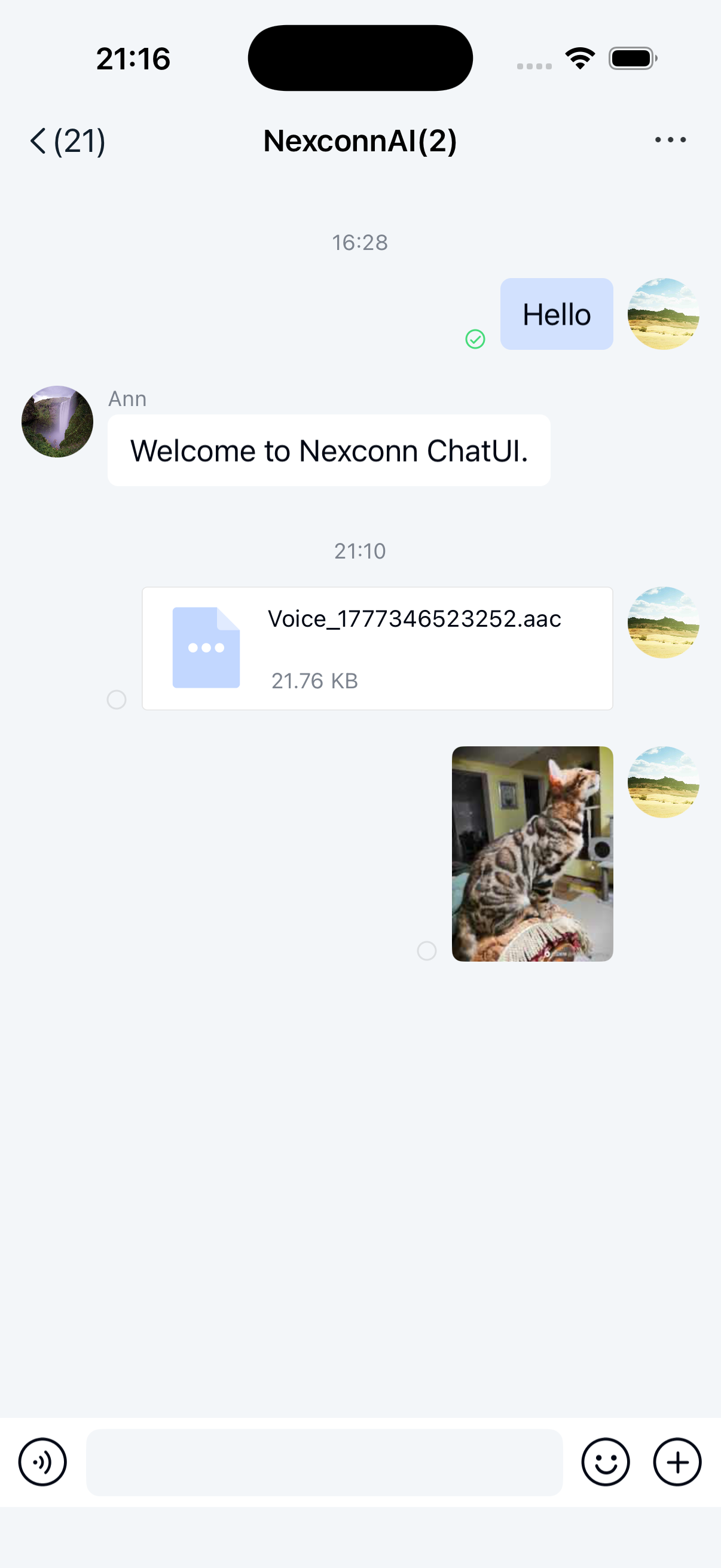
Users can send image and GIF messages through the built-in image plugin in Chat UI. These messages appear in the message list component of the channel page. The SDK sends messages containing the following content objects by default:
- Image message content class:
NCImageMessage - GIF message content class:
NCGIFMessage
Limitations
- Only supports sending local images and GIFs
- Maximum GIF file size is 2 MB
- Image and GIF messages are uploaded to Nexconn servers by default. To upload to your own server, you need to intercept the message and handle the upload yourself. See Intercept messages
Usage
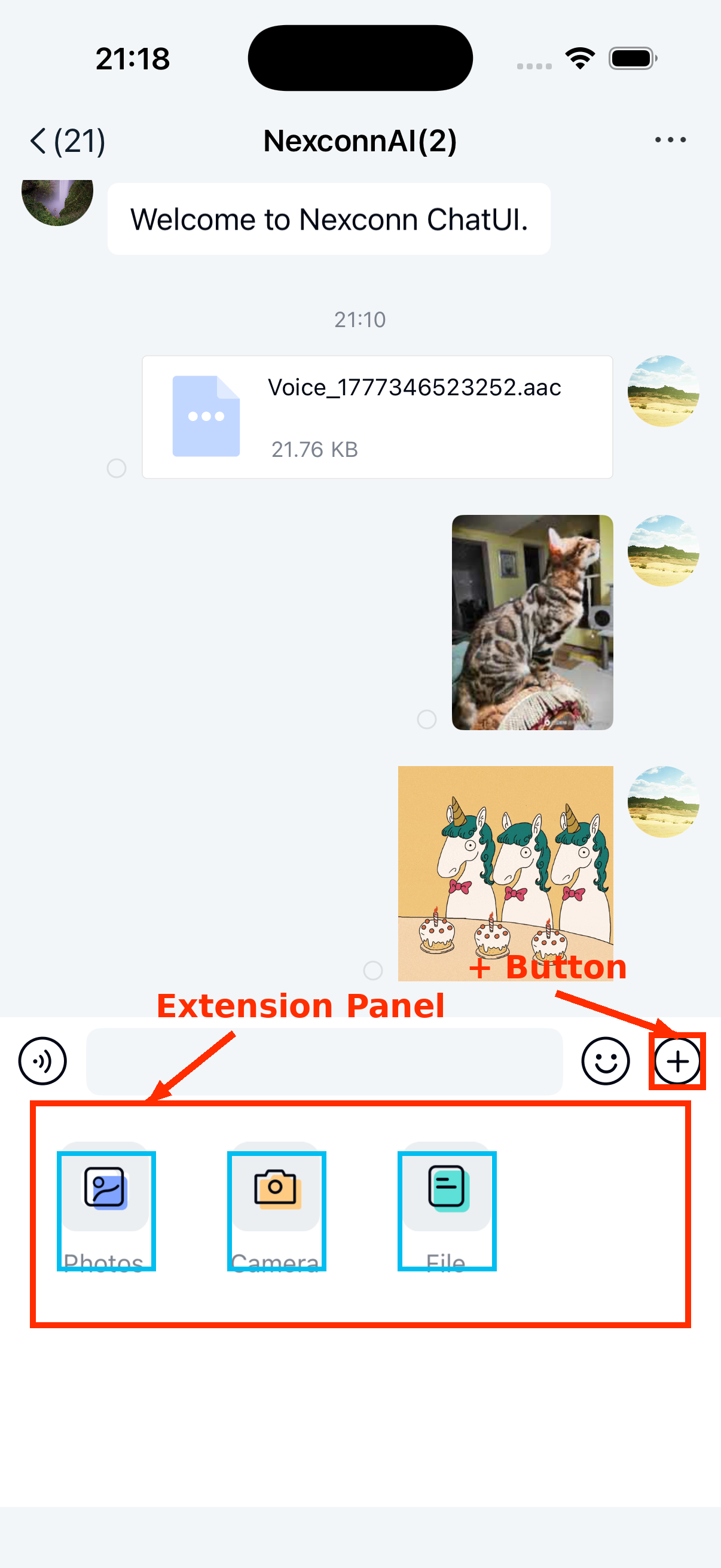
The extension panel includes a default image message entry implemented by Chat UI's built-in Photo. Users can:
- Tap the
+button on the right side of the input bar to expand the extension panel - Tap the image icon to open the local photo album
- Select images or GIF files to send
Customization
Adjust image compression quality
Before sending, images are compressed and thumbnails are generated for display in the chat interface. GIFs don't have thumbnails and aren't compressed.
- Thumbnails for image messages: The SDK generates a large image at 30% of the original quality that meets standard size requirements, with the longest side not exceeding 240 px. This thumbnail is used for display in the chat interface.
- Images: When sending without selecting the original image, the SDK generates a large image at 85% of the original quality that meets standard size requirements, with the longest side not exceeding 1080 px.
We recommend keeping the default compression settings. To adjust compression quality, see How to modify SDK's default image and video compression settings.
Customize image and GIF message UI
Image and GIF messages use these default templates in the message list:
NCImageMessageCellNCGIFMessageCell
To modify built-in message styles:
- Create a custom message cell that inherits from
NCMessageCell - Provide the custom cell to the SDK
All message templates in Chat UI inherit from NCMessageCell. See Modify message display styles.
Alternatively, you can directly replace style resources, string resources, and icon resources referenced in the message display templates within NCChatUI.bundle. See Chat UI source files NCImageMessageCell.m and NCGIFMessageCell.m.
Customize photo album list UI
| Resource | Customization Method |
|---|---|
| Top-left/top-right buttons | Change by setting the global UIBarButtonItem tintColor |
| Selection button on image corners | Replace image resources photopicker_state_normal and photopicker_state_selected |
| Other buttons | Modify relevant fields in the photoPicker dictionary within NCChatUIColor.plist (path: NexconnChatUI/Resource/NCChatUIColor.plist) |
Customize photo preview UI
| Resource | Customization Method |
|---|---|
| Back button (top-left) | Replace image resource navigator_btn_back |
| Selection button (top-right) | Replace image resources photo_preview_unselected and photo_preview_selected |
| Other buttons | Modify relevant fields in the photoPreview dictionary within NCChatUIColor.plist |
| Original image selection indicator | Replace image resources selected_full and unselected_full |
Hide image entry in extension panel
Chat UI enables the image entry in the extension panel by default. To hide it, remove the specific extension item through NCChannelViewController's chatSessionInputBarControl.pluginBoardView before displaying the channel page.
See Input area.