Integrate APNs push notifications
The Nexconn server has APNs server-side integration built in. When an app is killed, suspended in the background by the system, or has been running in the background for more than 2 minutes, the Chat SDK's persistent connection is dropped. At that point, the Nexconn server can notify the client of new messages via the APNs channel.
Nexconn server support for APNs
The Nexconn server supports the following authentication methods with the Apple APNs server:
| Type | Differences | Required Credentials |
|---|---|---|
| Token-based authentication (P8) | APNs processes token-based push requests faster. Apps under the same account can share a single P8 key, and it works for both sandbox and production environments. P8 keys never expire. | Obtain a signing key (a .p8 text file) from your Apple Developer account and provide it to Nexconn. Nexconn uses your key to sign the token in APNs push requests. |
| TLS certificate (P12) | Must be bound to an Apple App ID and can only be used for that app. An APNs certificate can support sandbox only (P12) or both production and sandbox (P12 universal). Valid for one year. | Obtain the certificate from your Apple Developer account and provide it to Nexconn. Nexconn uses it to authenticate with APNs. The certificate expires after one year — create a new one before it expires and upload it to Nexconn. |
The information above is sourced from Apple's official developer documentation. For details, see Apple Developer Account Help: Communicate with APNs using authentication tokens and Communicate with APNs using a TLS certificate.
Operations in the Apple developer account
You must have an App ID to use APNs push notifications. The following describes how to create an App ID from the Apple Developer account page and enable Push Notifications for it.
Create an app ID
If you already have an App ID, skip this step and go directly to Enable push notifications for an App ID.
Follow these steps to create an App ID from the Apple Developer account:
-
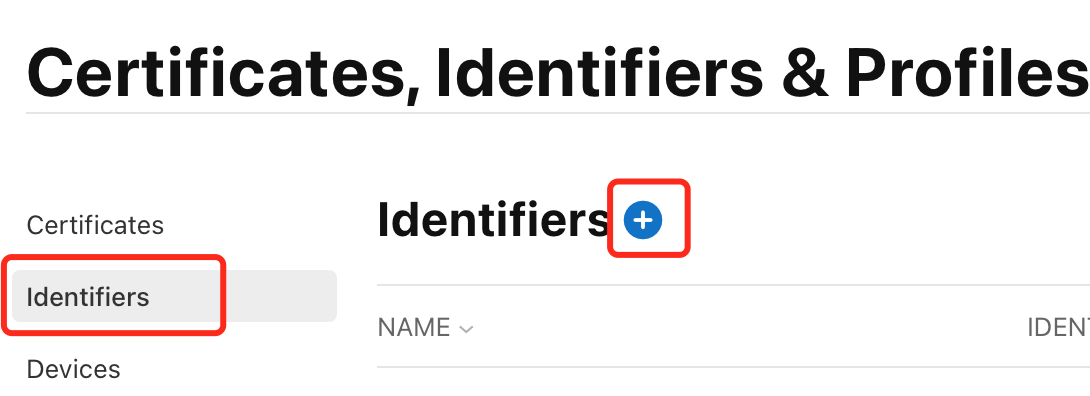
In Certificates, Identifiers & Profiles, click Identifiers in the sidebar, then click the add button (+) in the upper-left corner.
-
Select App IDs from the list and click Continue.
-
Confirm that the App ID type is automatically selected, then click Continue.
-
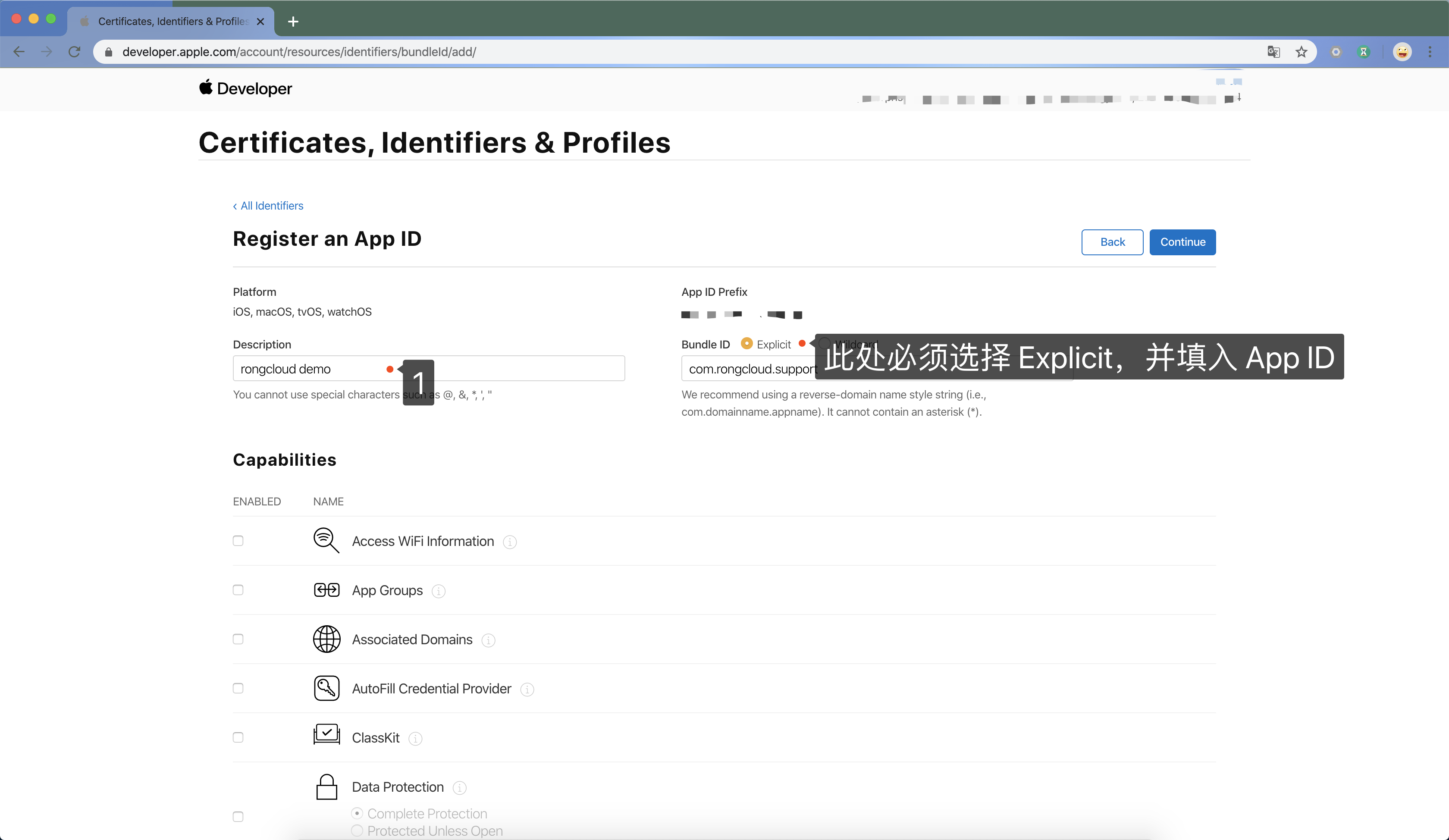
In the Description field, enter a name or description for the App ID. Select Explicit App ID and enter the app's Bundle ID in the Bundle ID field.
The explicit App ID you enter here must match the Bundle ID in the Summary panel of your target in Xcode.
-
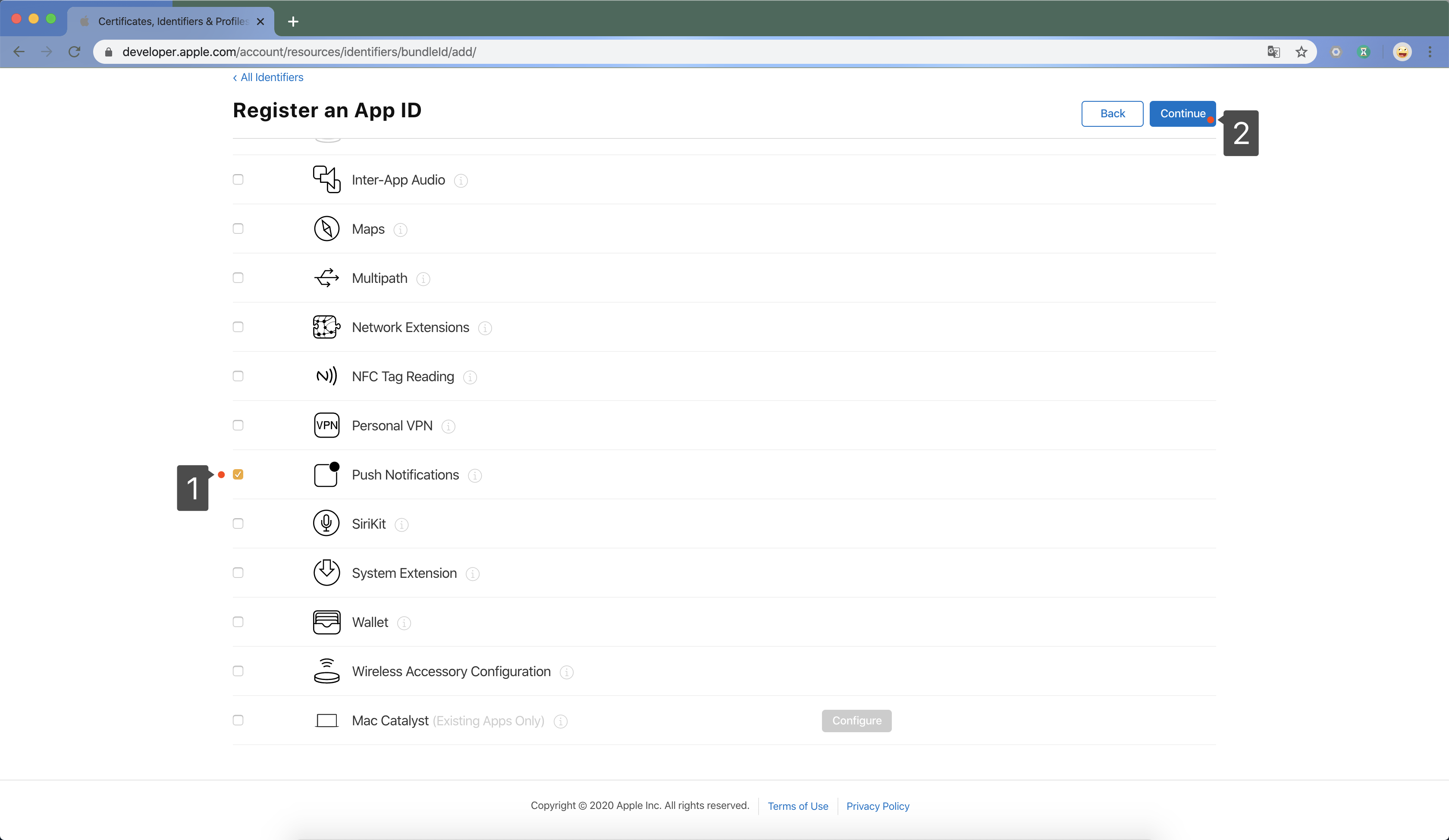
The Capabilities section shows the capabilities available for your app type. Select the checkboxes for the capabilities you want to enable.
Check Push Notifications to enable push notification support.
-
Click Continue, review the registration details, then click Register.
For more details about creating an App ID, see Apple Developer Account Help: Register an App ID.
Enable push notifications for an app ID
The following content is from Apple Developer Account Help: Enable push notifications.
Follow these steps to enable push notifications for an existing App ID in the Apple Developer account. If push notifications are already enabled, skip this step.
-
In Certificates, Identifiers & Profiles, click Identifiers in the sidebar, then find and select the App ID you want to configure.
-
Under Capabilities, check Push Notifications.
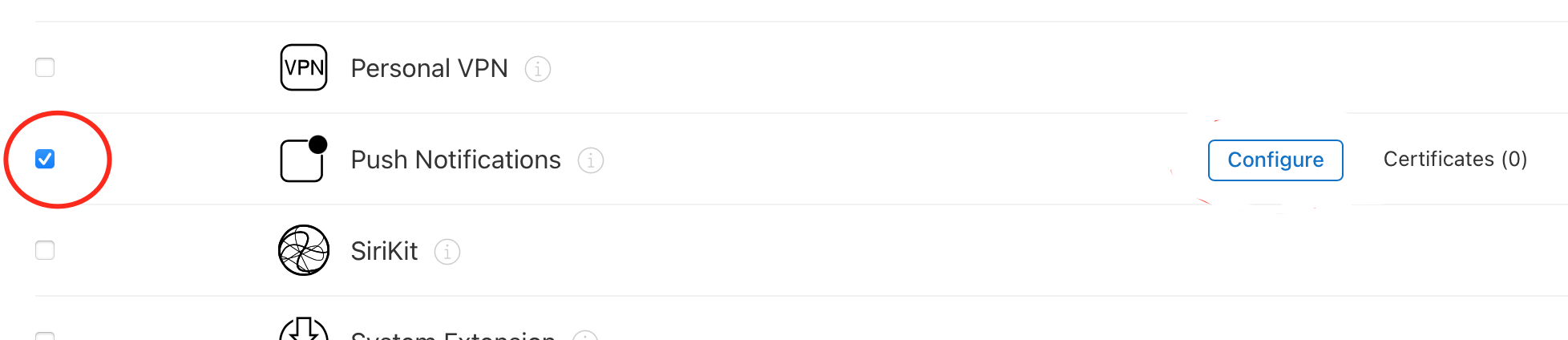
After enabling push notifications for the App ID, create either a P8 key or a P12 certificate based on your needs.
Token-based authentication (P8)
For information about "communicating with APNs using authentication tokens," see the Apple developer documentation Establishing a Token-Based Connection to APNs. The following steps are from Apple Developer Account Help: Create and download a private key with APNs enabled.
Create and download a private key for APNs (a .p8 text file, also called a "P8 key") from your Apple Developer account.
-
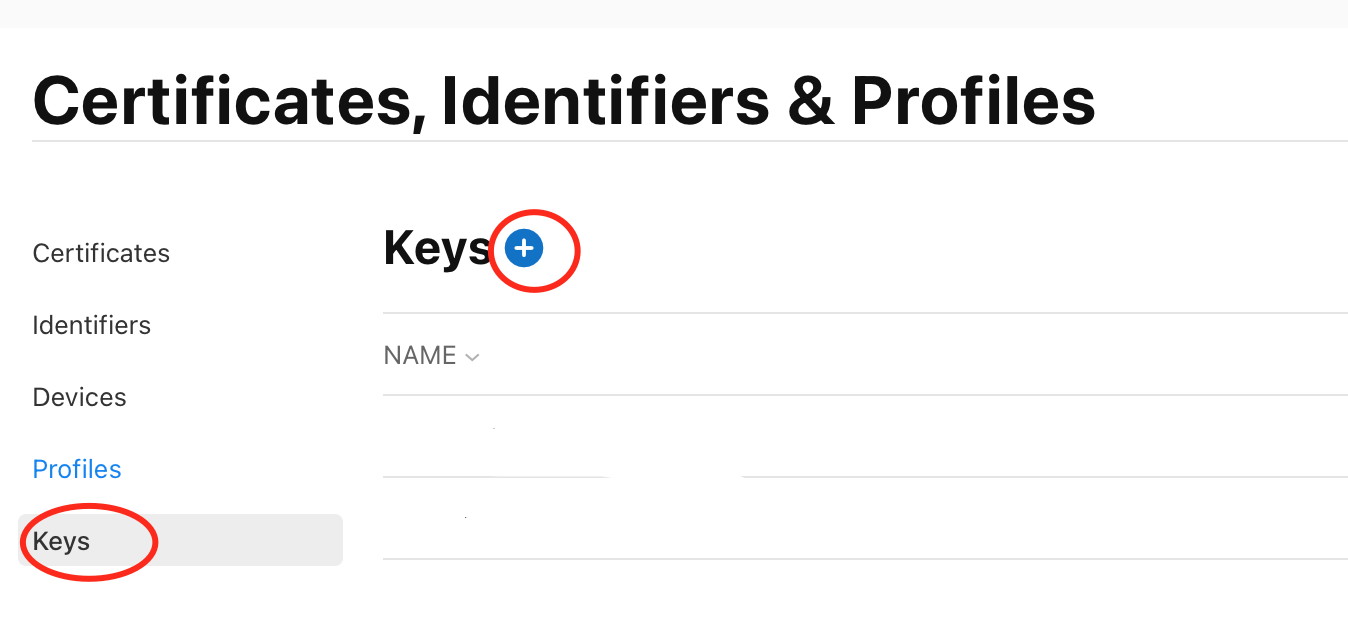
In Certificates, Identifiers & Profiles, click Keys in the sidebar, then click the add button (+) in the upper-left corner.
-
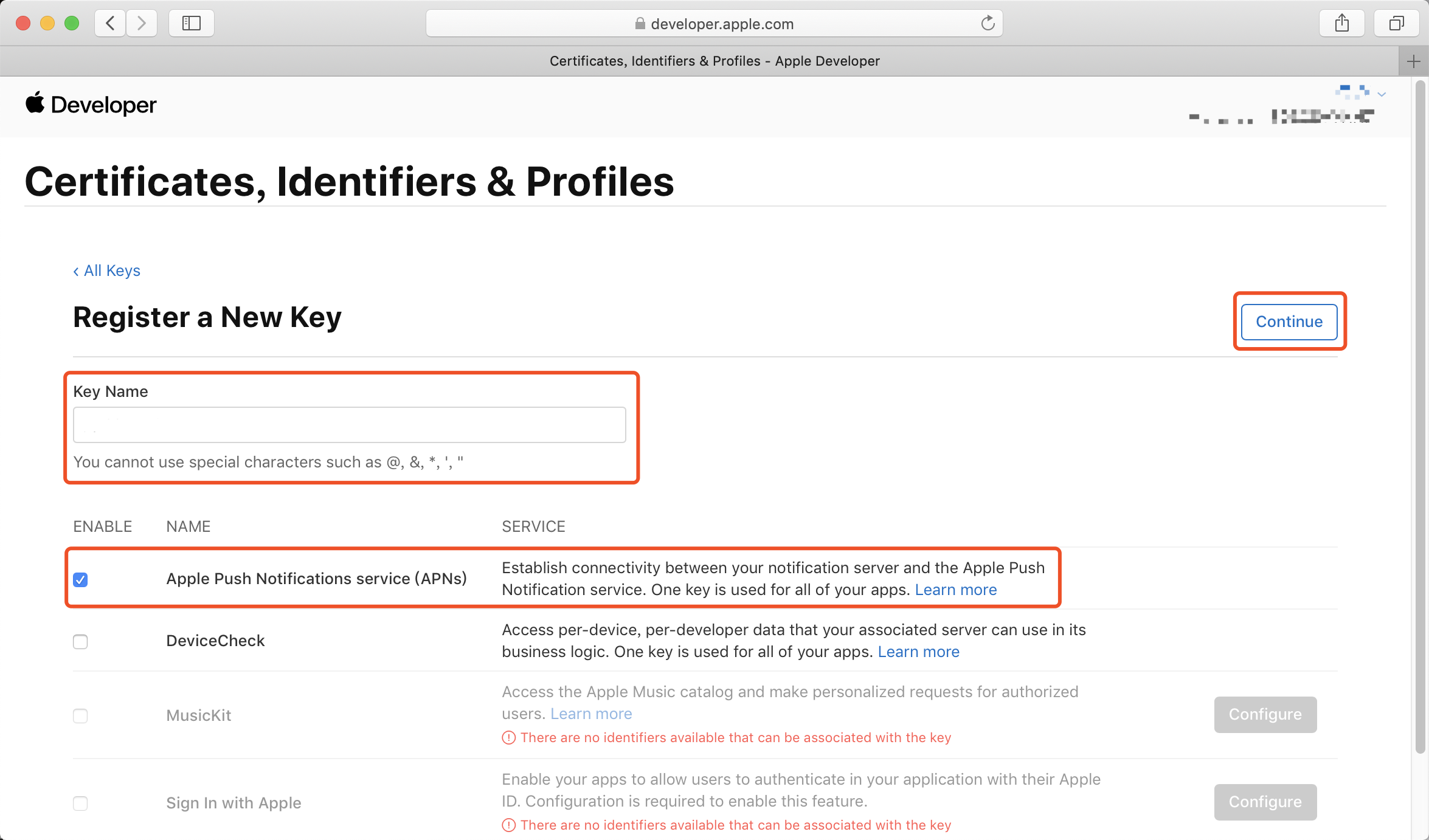
Under Key Name, enter a unique name for the key. Check Apple Push Notifications service (APNs) to enable APNs, then click Continue.
-
Review the key configuration, then click Confirm.
-
Click Download to immediately generate and download the key file. The key downloads as a text file with a
.p8extension.- Note: Record the Key ID — you will need it later.
- Warning: The key can only be downloaded once. After downloading, it is removed from your developer account, so keep it safe. If the Download button is disabled, you have already downloaded this key.
-
Click Done.
After obtaining the .p8 file, upload it in the Nexconn console. See Upload the certificate to Nexconn.
TLS certificate (P12)
For information about P12 certificates and "communicating with APNs using a TLS certificate," see the Apple developer documentation Establishing a Certificate-Based Connection to APNs.
Creating a P12 certificate requires you to first generate a Certificate Signing Request (CSR) locally, then upload the CSR to the Apple Developer account to generate a certificate (.cer) file, download it, and export it as a .p12 certificate on a Mac.
Create a certificate signing request
Keychain Access on Mac lets you create a Certificate Signing Request (CSR).
-
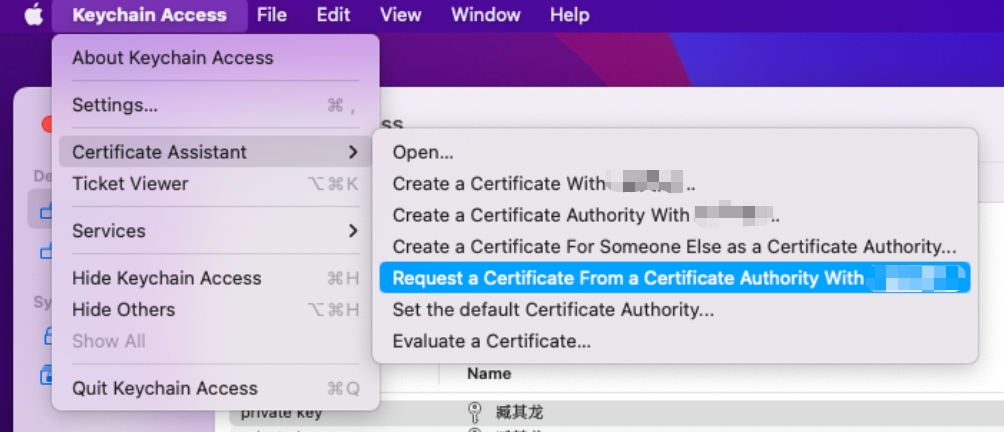
Open Keychain Access on Mac, select Certificate Assistant, then select Request a Certificate From a Certificate Authority.
-
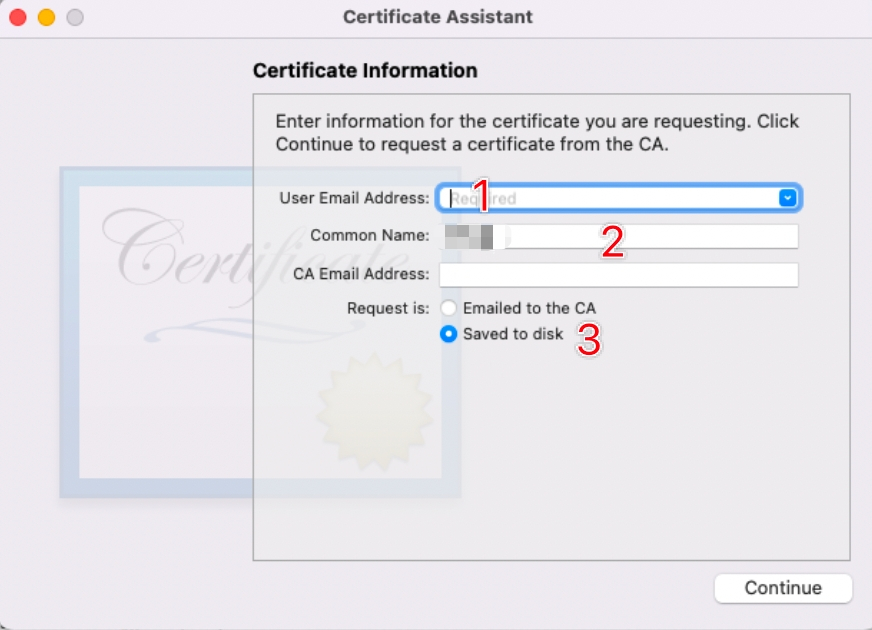
Fill in the certificate information and save it to disk.
- In the Certificate Assistant dialog, enter your email address in the User Email Address field.
- In the Common Name field, enter a name for the key (for example, Nexconn).
- Leave the CA Email Address field blank.
- Select Saved to disk, then click Continue.
Generate a .cer certificate
If you have multiple apps, generate a separate client TLS certificate for each app.
This step describes how to generate a push certificate with a .cer extension from the Apple Developer account. Note that the .cer file created in this step must be converted to a .p12 file before it can be uploaded to the Nexconn console.
The two methods below differ only in UI navigation — choose either one.
-
Method 1: Generate the
.cerfile from the Certificates page of the Apple Developer account.-
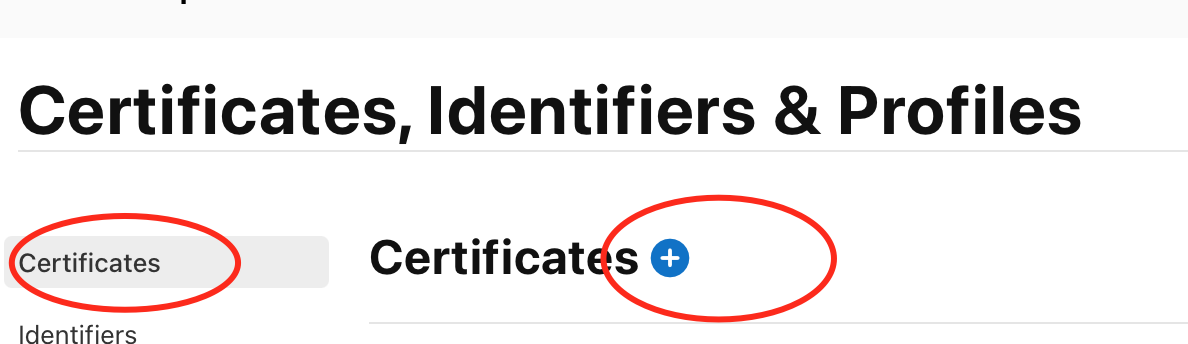
In Certificates, Identifiers & Profiles, click Certificates in the sidebar, then click the add button (+) in the upper-left corner.
-
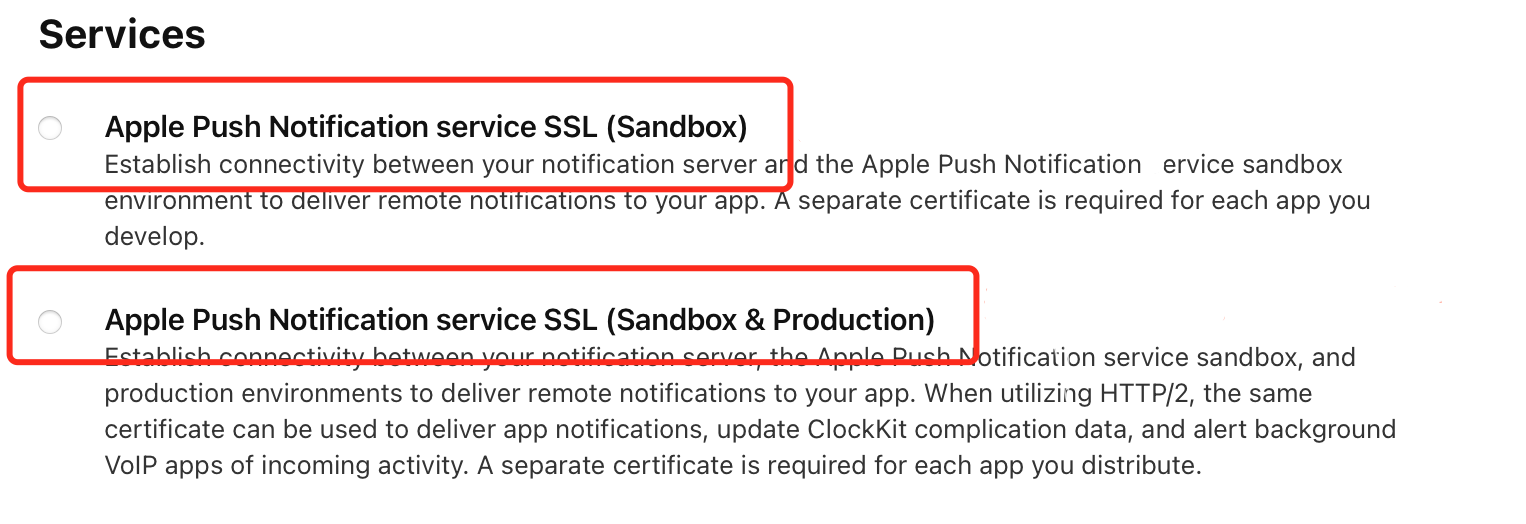
Select a certificate type and click Continue.
- Apple Push Notification service SSL (Sandbox): Pushes only to the APNs Sandbox environment. Use this certificate only in the Nexconn console's development environment — it is not allowed in the production environment.
- Apple Push Notification service SSL (Sandbox & Production): Pushes to both APNs Sandbox and Production environments. Can be used in both the development and production environments of a Nexconn app.
-
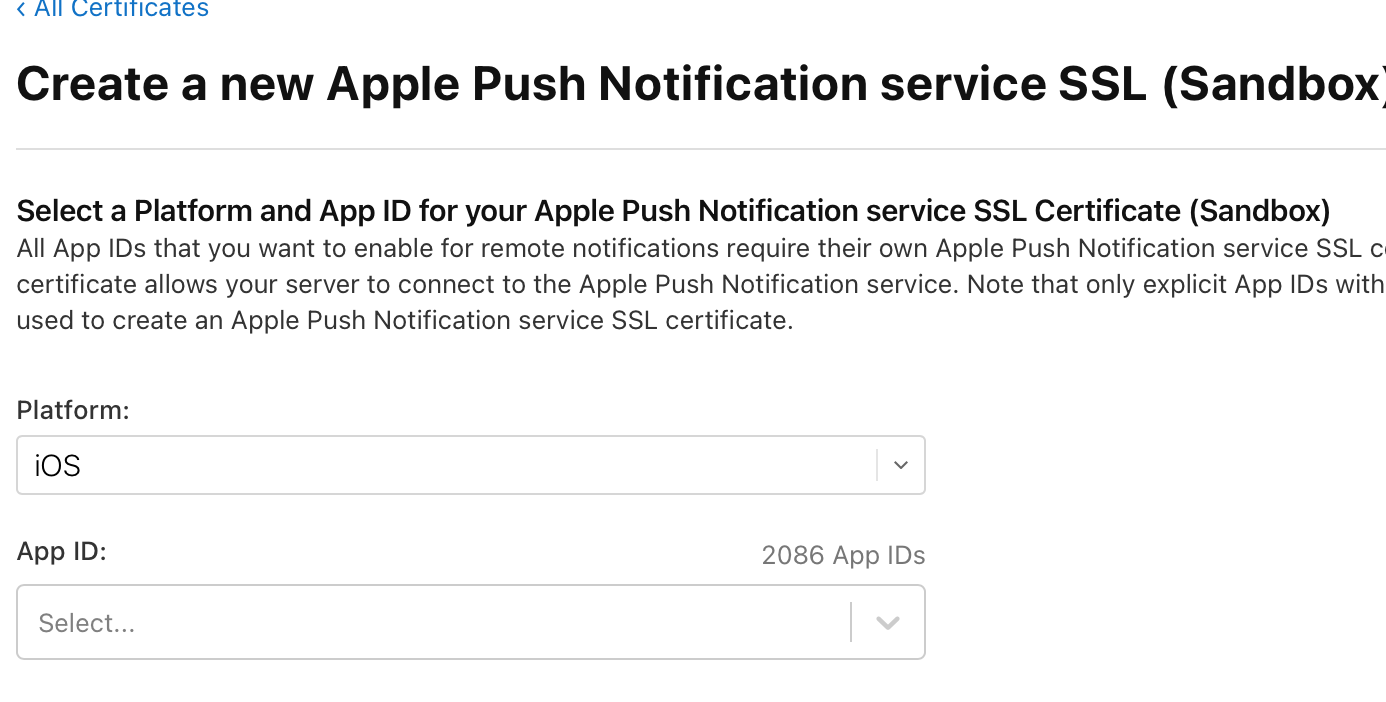
Select the App ID for which you want to generate the certificate, then click Continue.
-
Create a Certificate Signing Request on your Mac. If you already created a CSR file following the instructions above, skip this step.
-
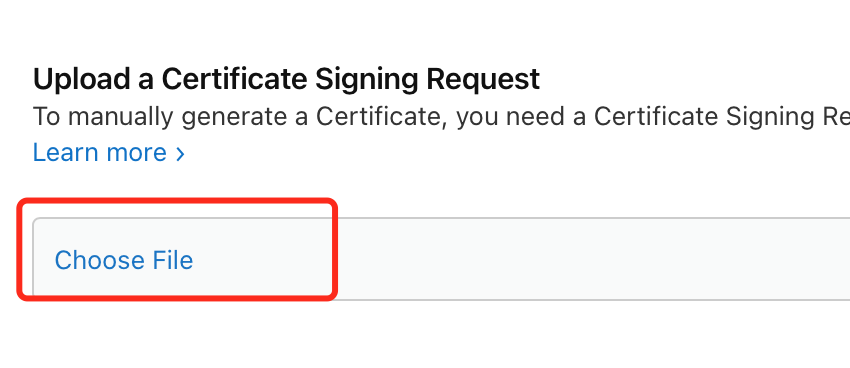
Click Choose File to upload the CSR file, then click Continue.
-
Click Download to save the certificate locally.
-
-
Method 2: Generate the
.cerfile from the Identifiers page of the Apple Developer account.tipThe following steps are from Apple Developer Account Help: Generate an APNs client TLS certificate.
-
In Certificates, Identifiers & Profiles, click Identifiers in the sidebar, then select the App ID you want to configure.
-
Under Capabilities, confirm that the Push Notifications checkbox is selected.
-
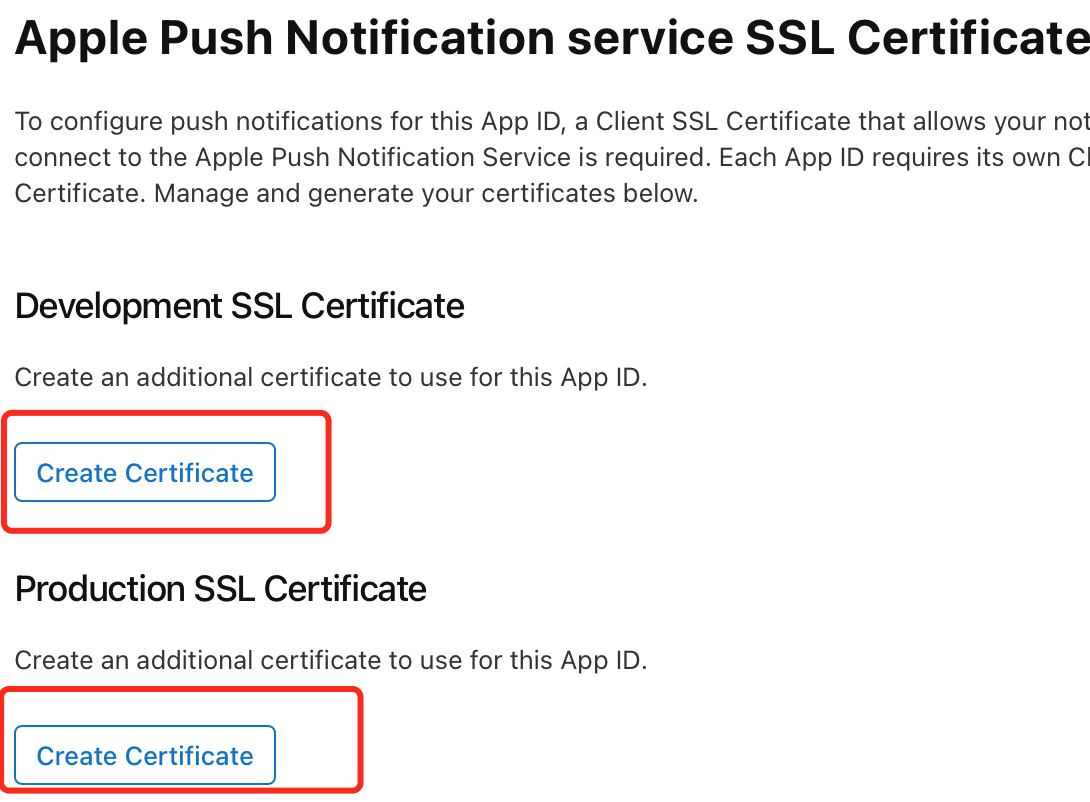
Click Configure to enter the certificate creation page. Select the environment you want to configure, then click Create Certificate. APNs provides both production and development environments.
- Development SSL Certificate: Pushes only to the APNs Sandbox environment. Use this certificate only in the Nexconn console's development environment — it is not allowed in the production environment.
- Production SSL Certificate: Pushes to both APNs Sandbox and Production environments. Can be used in both the development and production environments of a Nexconn app.
-
Create a Certificate Signing Request on your Mac. If you already created a CSR file following the instructions above, skip this step.
-
Click Choose File to upload the CSR file, then click Continue.
-
Click Download to save the certificate locally.
-
Convert the .cer file to P12 format
-
Double-click the downloaded certificate file (
.cer). The certificate is automatically imported into Keychain. The certificate name isApple [Development/Production] iOS Push Services: [Bundle ID], orApple Push Services: [Bundle ID]. -
In Keychain Access on Mac, click login and Certificates in the left panel, select the imported certificate, right-click it, and export it as a
.p12certificate file. -
A dialog appears prompting you to set a password to protect the exported item. The password you enter here will be required when uploading the P12 certificate to the Nexconn console — make sure to record it.
-
Enter the certificate password again to complete the export.
Configure APNs push notifications in the Nexconn console
Upload the APNs Auth Key (P8) or TLS certificate (P12) to the Nexconn console so that the Nexconn server can communicate with APNs and send push notifications to iOS clients.
The packaging method of the IPA used for push testing must match the certificate environment configured in the Nexconn console for the corresponding AppKey:
- For a development AppKey, upload a development P12 or P8 certificate. The app must be installed via a Development IPA or run directly from Xcode.
- For a production AppKey, upload a production P12 or P8 certificate. The app must be an Ad Hoc release IPA for push testing.
-
Go to the Nexconn console, then navigate to Chat > Chat settings > Offline Push > Push notification credentials. If no entry exists, click Add, then choose Configure Push.
-
Fill in the Bundle Identifier.
-
If you created a P8 key file, select Token Authentication as the Authentication Method and follow these steps:
-
Click Upload P8 File and select the APNs signing key
.p8file you created.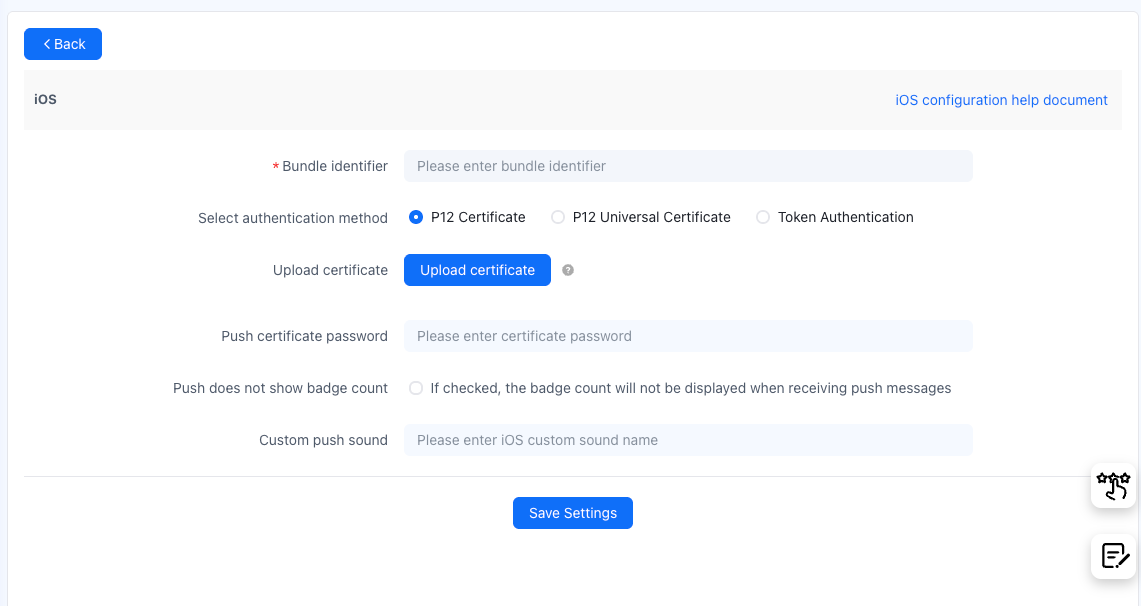
-
Fill in the Key ID (see Create P8 key).
-
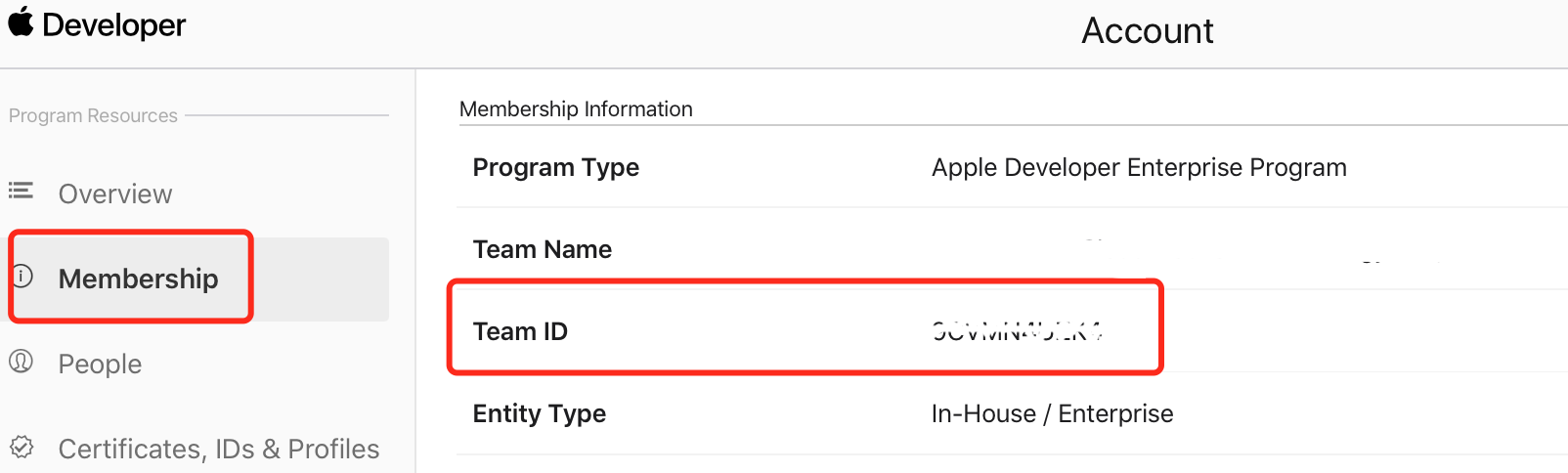
Fill in the Team ID. You can find the Team ID on the Membership page of the Apple Developer account.
-
-
If you created a P12 certificate file, note that the Nexconn production environment only accepts APNs universal certificates (Sandbox & Production). Choose the appropriate authentication method based on your certificate type and current environment:
-
To upload an APNs development certificate (Sandbox), select P12 Certificate.
-
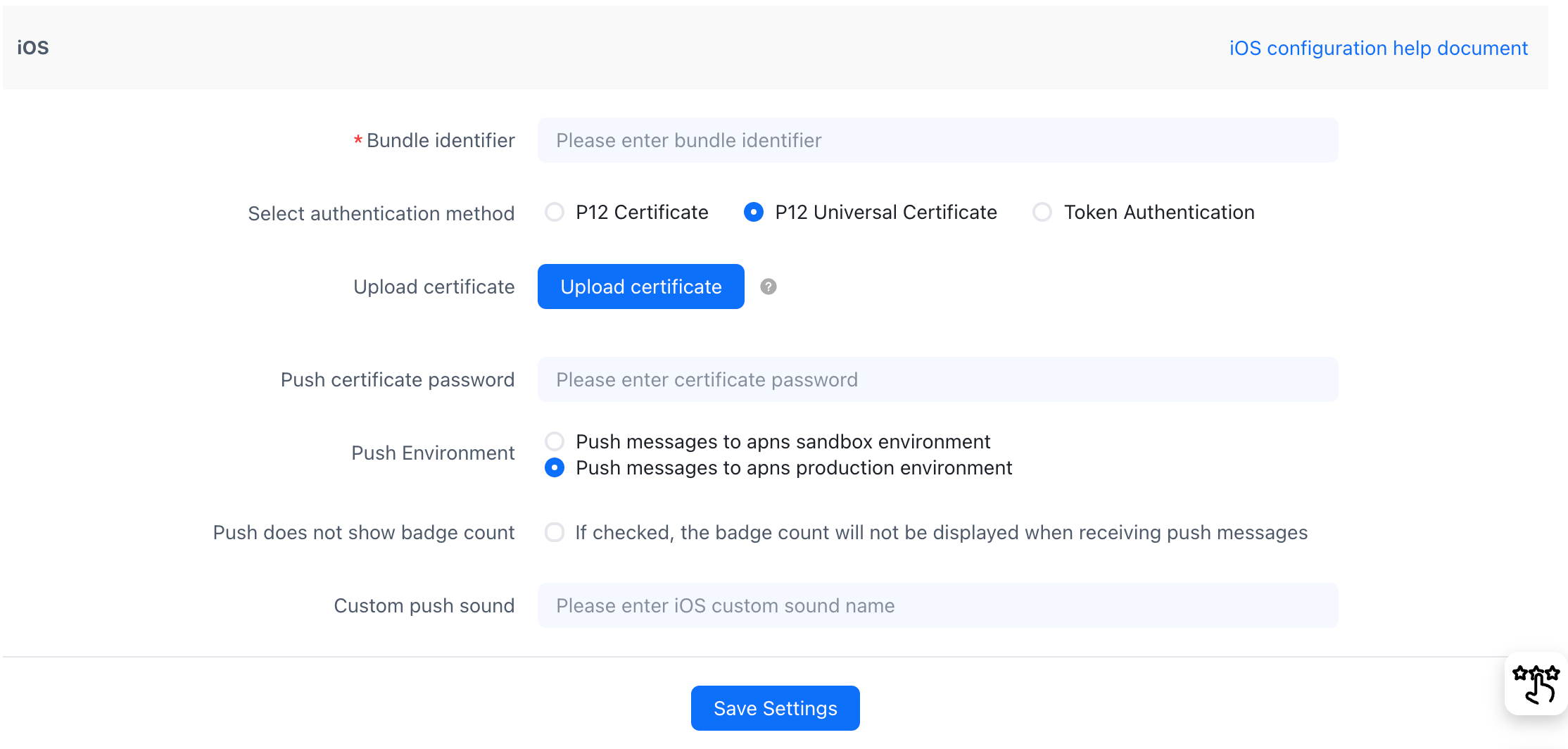
To upload an APNs universal certificate (Sandbox & Production), select P12 Universal Certificate.
-
Upload the certificate and fill in the certificate password.
-
If you use an APNs universal certificate (Sandbox & Production) in the Nexconn app's development environment, select whether to push to the APNs Sandbox or Production environment under Push Environment. When using the universal certificate in the production environment, only pushing to the APNs Production environment is supported and no selection is needed.
-
Create a provisioning profile
Create a Provisioning Profile to run your app on a device with push notification support. Create and download the provisioning profile from the Apple Developer account, then install it in Xcode.
-
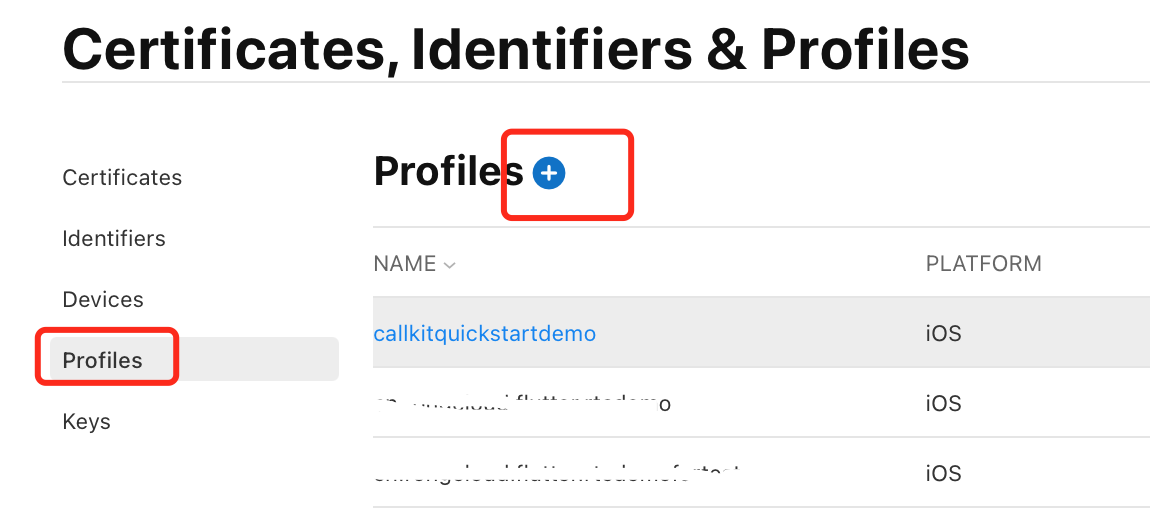
In Certificates, Identifiers & Profiles, click Profiles in the sidebar, then click the add button (+) in the upper-left corner.
-
Select the environment for the Provisioning Profile and click Continue.
-
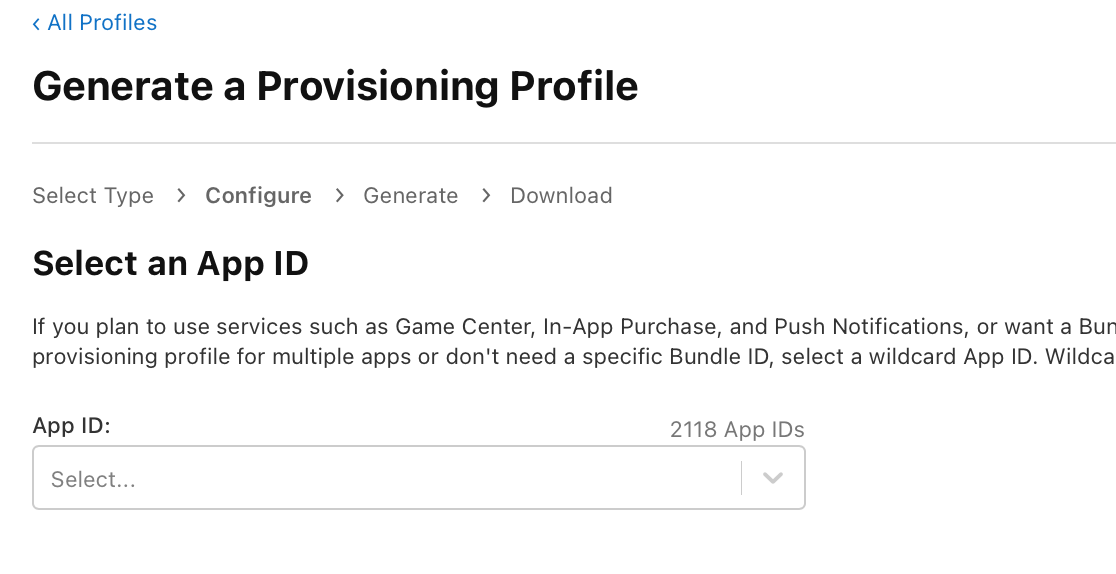
Select the App ID for the Provisioning Profile and click Continue.
-
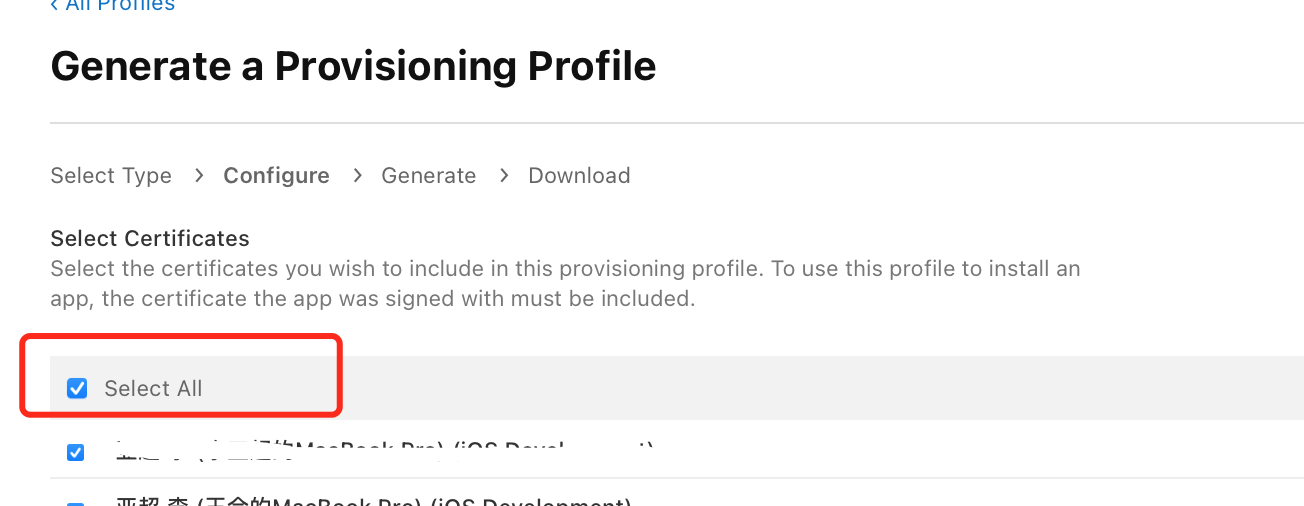
Select the developer certificate(s). If there are multiple, select Select All, then click Continue.
-
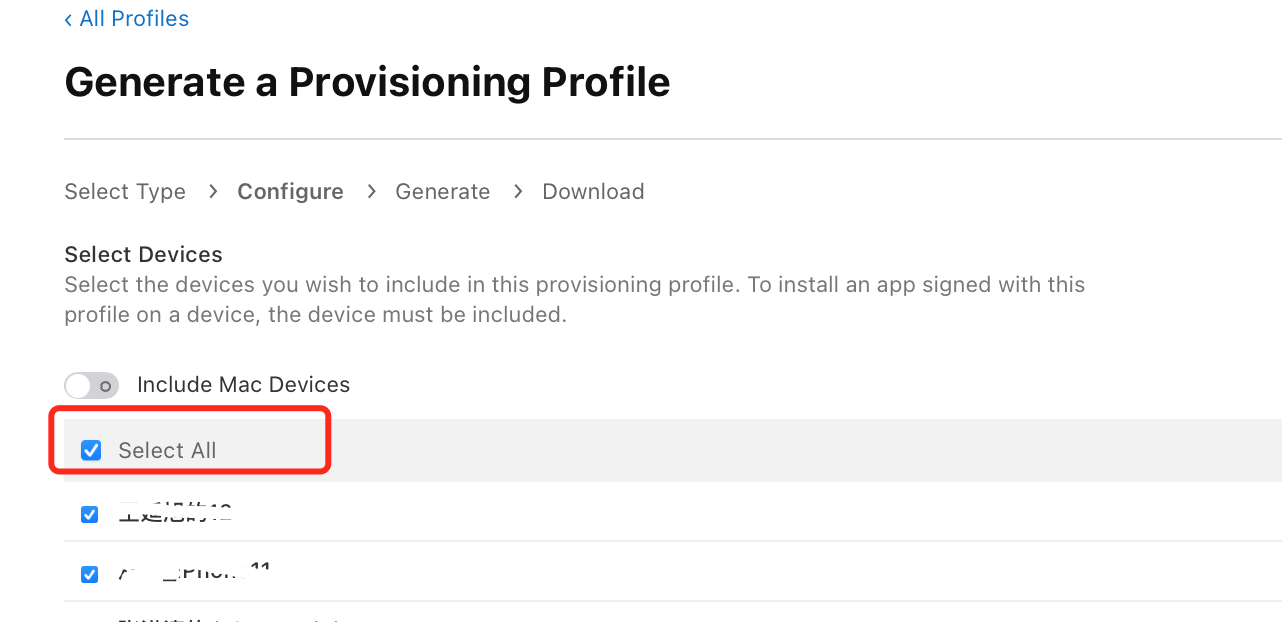
Select the devices on which the Provisioning Profile will be installed (generally select Select All), then click Continue.
-
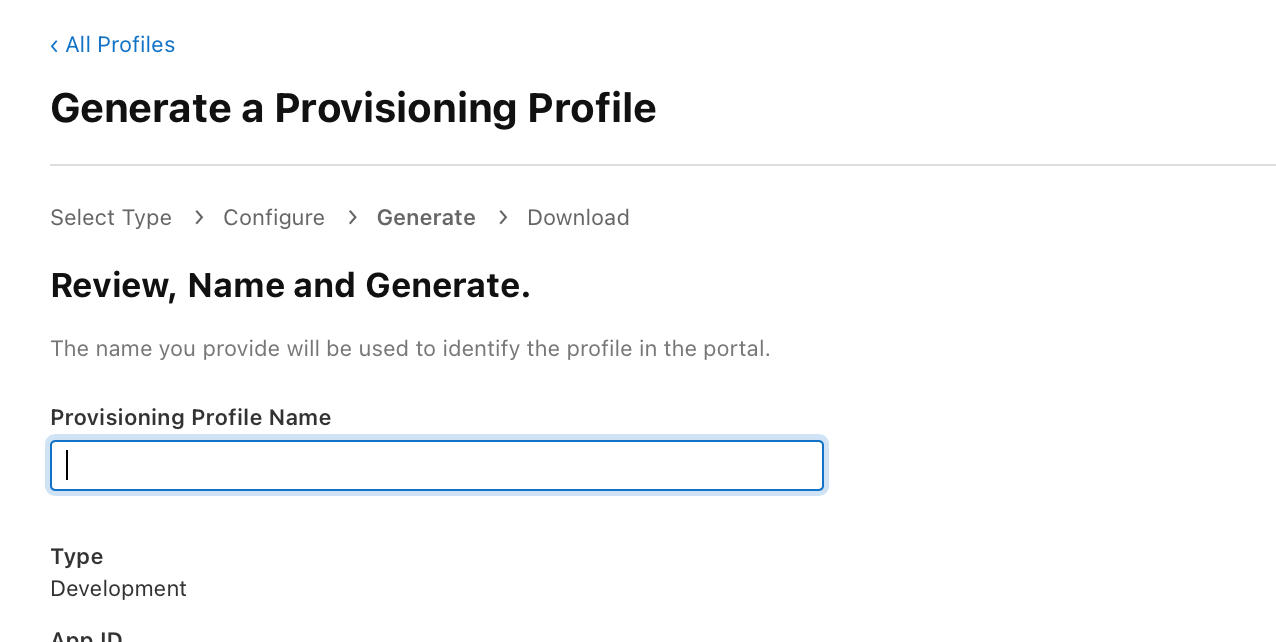
Enter a Profile Name. It is recommended to name it environment + AppID, then click Generate to finish.
-
After creation, click Download to save the file locally.
-
Double-click the downloaded Provisioning Profile file to add it to Xcode.
Client configuration
Request push permission
Both local and remote push notifications require explicit permission from the user.
- (BOOL)application:(UIApplication *)application didFinishLaunchingWithOptions:(NSDictionary *)launchOptions {

    if ([[UIDevice currentDevice].systemVersion floatValue] >= 10.0) {
        UNUserNotificationCenter *center = [UNUserNotificationCenter currentNotificationCenter];
        center.delegate = self;
        [center requestAuthorizationWithOptions:(UNAuthorizationOptionAlert | UNAuthorizationOptionBadge | UNAuthorizationOptionSound) completionHandler:^(BOOL granted, NSError * _Nullable error) {
            if (granted) {
                // User tapped Allow
                [center getNotificationSettingsWithCompletionHandler:^(UNNotificationSettings * _Nonnull settings) {

                }];

            } else {

            }
        }];
    }else if ([[UIDevice currentDevice].systemVersion floatValue] >8.0){
        // iOS8 - iOS10
        [application registerUserNotificationSettings:[UIUserNotificationSettings settingsForTypes:UIUserNotificationTypeAlert | UIUserNotificationTypeSound | UIUserNotificationTypeBadge categories:nil]];
    }
}
After the user grants permission, retrieve a device token from the user's device. The Nexconn server uses this token to submit push requests to the Apple Push Notification service. APNs then uses the token to identify the device and app and deliver the notification to the user.
-
iOS 10 and later — register with the APNs push service to obtain a device token:
Objective C// iOS 10 and later — register to obtain device token
[application registerForRemoteNotifications]; -
iOS 8–10 — register with APNs inside the application:didRegisterUserNotificationSettings: callback to obtain a device token:
Objective C- (void)application:(UIApplication *)application didRegisterUserNotificationSettings:(UIUserNotificationSettings *)notificationSettings{
[application registerForRemoteNotifications];
}
Set the device token
After the user's device registers with APNs, you receive an NSData device token.
Pass this device token to the Nexconn SDK inside the application:didRegisterForRemoteNotificationsWithDeviceToken: callback.
- (void)application:(UIApplication *)application didRegisterForRemoteNotificationsWithDeviceToken:(NSData *)deviceToken {
    [NCEngine setDeviceTokenData:deviceToken];
}
Retrieve push data
If the app needs to support iOS 7+, use the didReceiveRemoteNotification:fetchCompletionHandler: method to retrieve push data (userInfo).
On iOS 10 and later, use two delegate methods from UNUserNotificationCenterDelegate to receive notification data.
-
When the app is in the foreground, use userNotificationCenter:willPresentNotification:withCompletionHandler: to retrieve push data (
userInfo). -
When the user taps a notification, use userNotificationCenter:didReceiveNotificationResponse:withCompletionHandler: to retrieve push data (
userInfo).Objective C/// iOS >= 10.0
#pragma mark - UNUserNotificationCenterDelegate
#if __IPHONE_OS_VERSION_MAX_ALLOWED >= __IPHONE_10_0
- (void)userNotificationCenter:(UNUserNotificationCenter *)center didReceiveNotificationResponse:(UNNotificationResponse *)response withCompletionHandler:(void(^)(void))completionHandler NS_AVAILABLE_IOS(10_0){
// userInfo contains the remote push notification payload
completionHandler();
}
#endif
If the app was frozen by the system when the user taps a remote push notification in the notification bar, retrieve the data as follows:
- (BOOL)application:(UIApplication *)application
    didFinishLaunchingWithOptions:(NSDictionary *)launchOptions {
    // Remote push notification payload
    NSDictionary *remoteNotificationUserInfo = launchOptions[UIApplicationLaunchOptionsRemoteNotificationKey];

    ...

    return YES;
}
The app can retrieve remote push data via [getPushExtraFromLaunchOptions] or [getPushExtraFromRemoteNotification].
The remote push notification payload for Nexconn messages has the following format:
{
  "aps" :
			{
				 "alert" : "You got your emails.",
				 "badge" : 1,
				 "sound" : "default"
			},
	 "rc":{
				 "cType":"PR",
				 "fId":"2121",
				 "oName":"RC:TxtMsg",
				 "tId":"3232",
				 "rId":"3243",
				 "id":"5FSClm2gQ9V9BZ-kUZn58B",
				 "rc-dlt-identifier":"2FSClm2gQ9Q9BZ-kUZn54B"
	 },
	 "appData":"xxxx"
}
| Parameter | Type | Description |
|---|---|---|
| alert | String | The content displayed in the remote push notification. Built-in message types have default display text. If you use a custom message type, you must set this in the send call. Corresponds to pushContent in the iOS send message API. |
| cType | String | Channel type. PR (direct), DS (discussion group), GRP (group), CS (customer service), SYS (system Channel), MC (in-app public service), MP (cross-app public service), PH, UG (super group). |
| bId | String | Channel ID within a super group. Only remote push notifications for super group messages include this field. If the message does not belong to any channel, bId is an empty string. |
| fId | String | User ID of the message sender. |
| oName | String | Message type. Either a Nexconn built-in type (see ObjectName in Built-in Message Types) or a custom message type. |
| tId | String | Target ID. |
| rId | String | User ID of the recipient. |
| id | String | Unique identifier of the pushed message, corresponding to msgUID in the message routing feature. |
| rc-dlt-identifier | String | When the push is for a recalled message, this is the ID of the message to recall, corresponding to msgUID in the message routing feature. |
| appData | String | Additional data in the remote push notification, corresponding to pushData in the iOS send message API. |
Customize push notifications
- To customize remote push notification content, provide a
pushContentvalue when sending a message. - To intercept and modify remote push notification content, create a
Notification Service Extensionin your app. See the Apple developer documentation Modifying Content in Newly Delivered Notifications. - To customize the display style of remote push notifications, create a
Notification Content Extensionin your app. See the Apple developer documentation Customizing the Appearance of Notifications.
Test APNs remote push notifications
After completing APNs integration, follow Test APNs Remote Push Notifications to verify your setup.