Make your first call
This tutorial shows how to build a minimal calling integration in an Android app by using the public APIs currently exposed from ai.nexconn.call.api.
Prerequisites
- Android
minSdkVersion: 21 - Android
compileSdk/targetSdk: 35 - Java 11 build configuration
- A working Chat SDK initialization and connection flow
Step 1: Add dependencies and project configuration
1. Add SDK dependencies
-
Open your project in Android Studio and switch to the Project view.
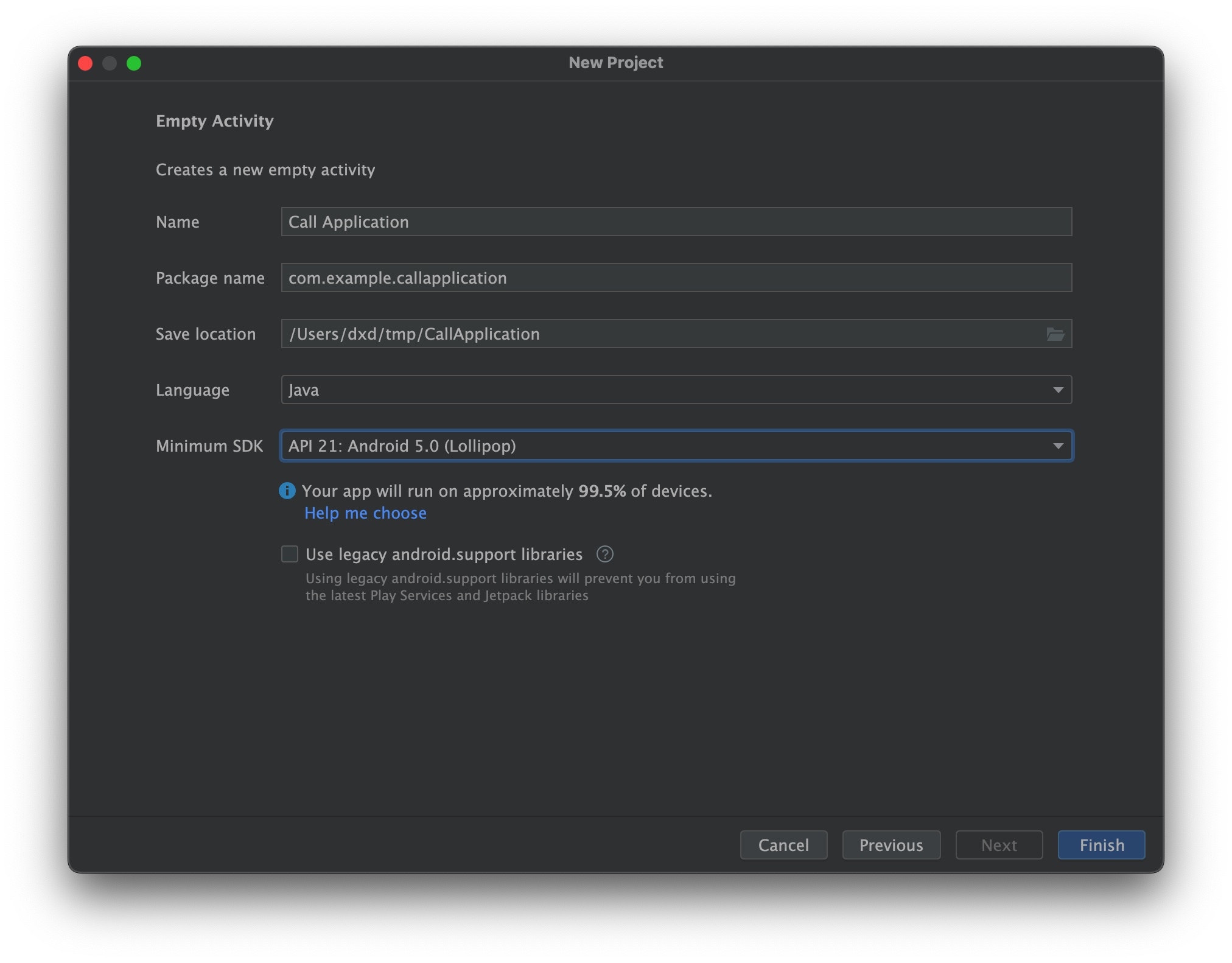
-
In the root
build.gradle, declare the Nexconn Maven repository:Use the setup that matches your Gradle plugin version:
- Gradle plugin < 8.0
- Gradle plugin 8.0+
Open the root
build.gradlefile and add:Groovyallprojects {
repositories {
...
mavenCentral()
}
}Open
settings.gradlein the root directory and add:GroovydependencyResolutionManagement {
repositories {
...
mavenCentral()
}
} -
In your app-level
build.gradle, add the Nexconn SDK as a dependency. Replacex.y.zwith the latest version from the Maven repository.Groovydependencies {
...
implementation 'ai.nexconn.chat:call:<version>'
implementation 'ai.nexconn.chat:chat:<version>'
// Optional push SDKs
implementation 'ai.nexconn.chat:push-fcm:<version>'
implementation 'ai.nexconn.chat:push-hms:<version>'
}
Use a Nexconn Chat SDK version that matches your Call SDK package, and complete Chat initialization and connection first.
2. Configure permissions
-
Declare all required permissions in
AndroidManifest.xml.xml<!-- Allows the app to access network connections -->
<uses-permission android:name="android.permission.INTERNET" />
<!-- Allows the app to query network connection state -->
<uses-permission android:name="android.permission.ACCESS_NETWORK_STATE" />
<uses-permission android:name="android.permission.CHANGE_NETWORK_STATE" />
<!-- Allows the app to query Wi-Fi and hotspot state -->
<uses-permission android:name="android.permission.ACCESS_WIFI_STATE" />
<!-- Allows the app to use the camera -->
<uses-permission android:name="android.permission.CAMERA" />
<!-- Allows the app to record audio -->
<uses-permission android:name="android.permission.RECORD_AUDIO" />
<!-- Allows the app to modify audio settings -->
<uses-permission android:name="android.permission.MODIFY_AUDIO_SETTINGS" />
<!-- Allows the app to read phone state -->
<uses-permission android:name="android.permission.READ_PHONE_STATE" /> -
If your app supports Android 6.0 (API level 23) or later, request
CAMERAandRECORD_AUDIOat runtime when the user starts or accepts a call. For details, see the Android documentation for runtime permissions and the request permission workflow.
Step 2: Install and initialize the Call SDK
Use this initialization order:
- Call
NCCallEngine.install()before Chat SDK initialization. - Initialize and connect the Chat SDK.
- Initialize the Call SDK, call
NCCallEngine.initialize(...).
// 1. Call once during app startup, before NCEngine initialization
NCCallEngine.install();

// 2. Initialize NCEngine
InitParams initParams = new InitParams(context, "your-app-key");
initParams.setLogLevel(LogLevel.DEBUG);
initParams.setAreaCode(AreaCode.SG);
initParams.setEnablePush(true);
NCEngine.initialize(initParams);

// 3. Connect the Chat SDK
ConnectParams connectParams = new ConnectParams("user-token");
NCEngine.connect(connectParams, new ConnectHandler() {
    @Override
    public void onResult(String userId, NCError error) {
        ... ...
    }
});

// 4. Initialize the Call SDK.
NCCallInitParams callInitParams = new NCCallInitParams(context);
callInitParams.pubLowResolutionStream(true);

NCCallEngine.initialize(callInitParams);
Make sure the Chat SDK is already connected before users place or receive calls; otherwise later call APIs can return NCCallCode.CHAT_DISCONNECTED.
Step 3: Register handlers
Register the call event handler before Chat connects so that you can receive restored call events or offline incoming calls as early as possible.
NCCallEngine engine = NCCallEngine.getInstance();

engine.setCallEventHandler(new NCCallEventHandler() {
    @Override
    public void onCallReceived(NCCallReceivedEvent event) {
        // Incoming call received
    }

    @Override
    public void onCallConnected(NCCallConnectedEvent event) {
        // Call connected
    }

    @Override
    public void onCallEnded(NCCallEndedEvent event) {
        // Call ended
    }

    ... ...

});

engine.setAPIResultHandler(new NCCallAPIResultHandler() {
    @Override
    public void onStartCall(NCCallStartCallResult result) {
    }

    @Override
    public void onAcceptCall(NCCallAcceptCallResult result) {
    }

    @Override
    public void onEndCall(NCCallEndCallResult result) {
    }

    ... ...

});
Step 4: Prepare local and remote video views
Before you start a video call, create the local and remote render views:
NCCallLocalVideoView localView = new NCCallLocalVideoSurfaceView(context);
localView.setRenderMode(NCCallRenderMode.FILL);

NCCallRemoteVideoView remoteView =
        new NCCallRemoteVideoSurfaceView(context, remoteUserId, false);
remoteView.setRenderMode(NCCallRenderMode.FILL);

//TODO: add the created localView and remoteView to your own UI layout

NCCallEngine engine = NCCallEngine.getInstance();
engine.setLocalVideoView(localView);
engine.setRemoteVideoView(Collections.singletonList(remoteView));
Step 5: Start a call
NCCallStartCallParams params = new NCCallStartCallParams(
        Collections.singletonList(remoteUserId),
        NCCallType.SINGLE,
        NCCallMediaType.AUDIO_VIDEO
);
params.setPushConfig(pushConfigs); // optional: android&iOS push config
params.setExtra(extra); //optional: extra content sent to receivers

NCCallEngine engine = NCCallEngine.getInstance();
engine.startCall(params);
For an audio-only call, change mediaType to NCCallMediaType.AUDIO.
Step 6: Accept or end the call
On the callee side, call the following APIs after onCallReceived(...):
NCCallReceivedEvent event = ...; // from onCallReceived callback
String callId = event.getCallSession().getCallId();

// Accept the call
NCCallAcceptCallParams acceptParams = new NCCallAcceptCallParams(callId);
NCCallEngine.getInstance().acceptCall(acceptParams);

// End or reject the call
NCCallEndCallParams endParams = new NCCallEndCallParams(callId);
NCCallEngine.getInstance().endCall(endParams);
Step 7: Control devices during the call
After the call is connected, control audio and video devices as needed:
NCCallEngine engine = NCCallEngine.getInstance();

engine.enableCamera(true);
engine.enableMicrophone(true);
engine.enableSpeaker(true);
engine.switchCamera();
Next steps
- See 1-to-1 call for more 1-to-1 call APIs.
- See Group call for group calling APIs.
- See Configure push settings for push fields.
- See Audio routing for speaker and route management.