File messages
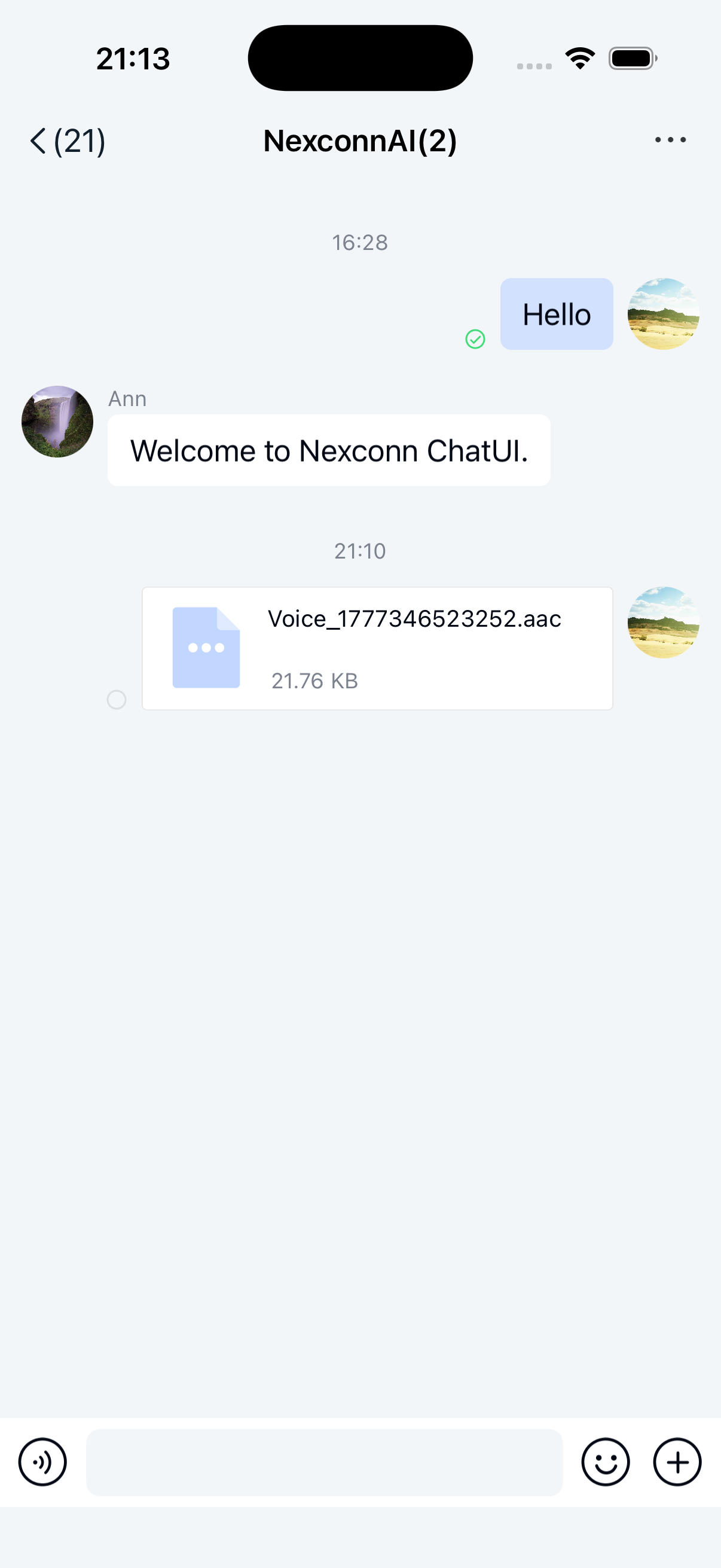
Users can send file messages through the built-in file plugin in Chat UI. Messages appear in the message list component on the channel page. The file plugin sends messages containing a file message content object [FileMessage] by default.
Limitations
- Only local files are supported.
- Files in file messages are uploaded to Nexconn servers by default. To upload to your own server, intercept the message and handle the upload yourself. See Intercept messages.
- File preview is not supported in Chat UI. Users must open files with other applications.
Usage
The built-in FilePlugin in Chat UI implements file message functionality in the extension panel. You can also refer to FilePlugin.java in the Chat UI source code.
Send file messages
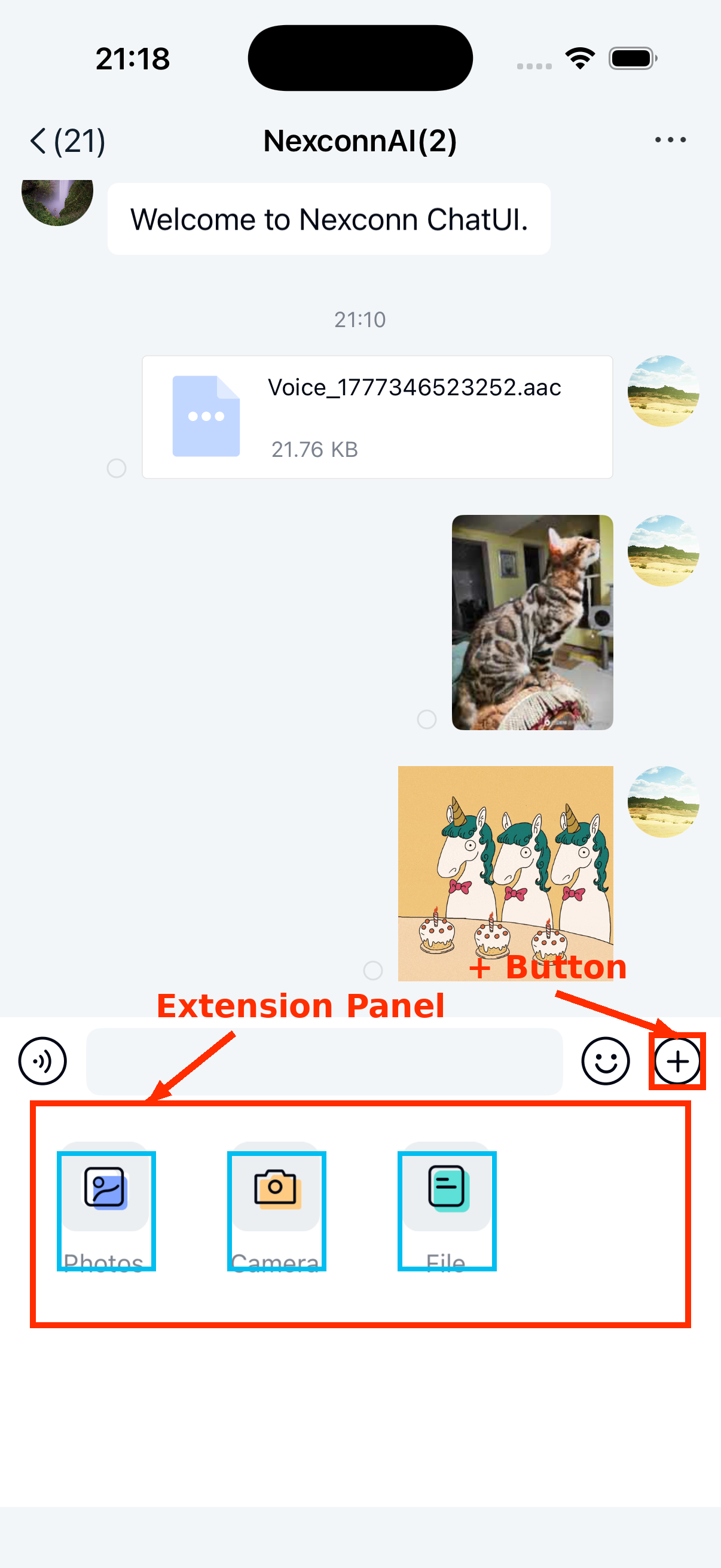
The extension panel includes a file message entry by default. Users can tap the + button on the right side of the input bar to expand the extension panel, then tap the file icon to send a file message.
Customization
Change the default file save location
The default nc_file_default_saved_path value in Chat UI is /Nexconn/File/. In the current source code, FilePlugin uses this path when it copies a selected local file before sending a file message.
Received file messages are downloaded from the file preview page to the app cache download directory, not to this configured path. You can create a res/values/nc_config.xml file in your application directory to change the configured send-side file copy path globally:
<string name="nc_file_default_saved_path">/Nexconn/File/</string>
Replace the default file icon for file messages
When a file message ([FileMessage]) is displayed in the channel interface, it shows a matching icon based on the file type carried by the message. The SDK provides matching icons for the following file types by default. For other file types, a unified default icon is displayed.
- Image: bmp, cod, gif, ief, jpe, jpeg, jpg, jfif, svg, tif, tiff, ras, ico, pbm, pgm, png, pnm, ppm, xbm, xpm, xwd, rgb
- Text: txt, log, html, stm, uls, bas, c, h, rtx, sct, tsv, htt, htc, etx, vcf
- Video: rmvb, avi, mp4, mp2, mpa, mpe, mpeg, mpg, mpv2, mov, qt, lsf, lsx, asf, asr, asx, avi, movie, wmv
- Audio: mp3, au, snd, mid, rmi, aif, aifc, aiff, m3u, ra, ram, wav, wma
- Word: doc, dot, docx
- Excel: xla, xlc, xlm, xls, xlt, xlw, xlsx
The SDK allows apps to modify the icon displayed for a file type (extension). Apps can update specific icons, replace all icons, or add new file types (extensions) and icons as needed.
Call this method before initialization.
Interface
NCChatUIConfig.channelConfig().registerFileSuffixTypes(map);
Parameters
| Parameter | Type | Description |
|---|---|---|
| map | HashMap<String, Integer> | File message icon configuration. The key is the file extension without the . (for example: png, pdf). The value is an Android resource ID. Apps must add the icon to the drawable resource directory. To replace the unified default file icon, use default as the key. |
Customize the file message UI
File messages are displayed in the message list using the FileMessageItemProvider template. To adjust the built-in message style, implement your own message display template class and provide it to the SDK. All message templates inherit from BaseMessageItemProvider<CustomMessage>, and custom message display templates must also inherit from BaseMessageItemProvider<CustomMessage>. See Customize message item styles.
You can also directly replace the style resources, string resources, and icon resources referenced in the file message display template. See the resources referenced in FileMessageItemProvider.java in the Chat UI source code.
Hide the file message entry
Chat UI enables the file message entry in the extension panel by default. To modify this dynamically, create a custom extension panel configuration class MyExtensionConfig that inherits from DefaultExtensionConfig and override the getPluginModules() method. See Input area extension panel.