Input area
The Chat UI SDK input area is created and controlled by NCExtension. It supports custom input modes, custom extension areas (plugins), and custom emojis.
The input bar shown below contains, from left to right: voice/text toggle button, content input field, emoji panel button, and extension panel button.
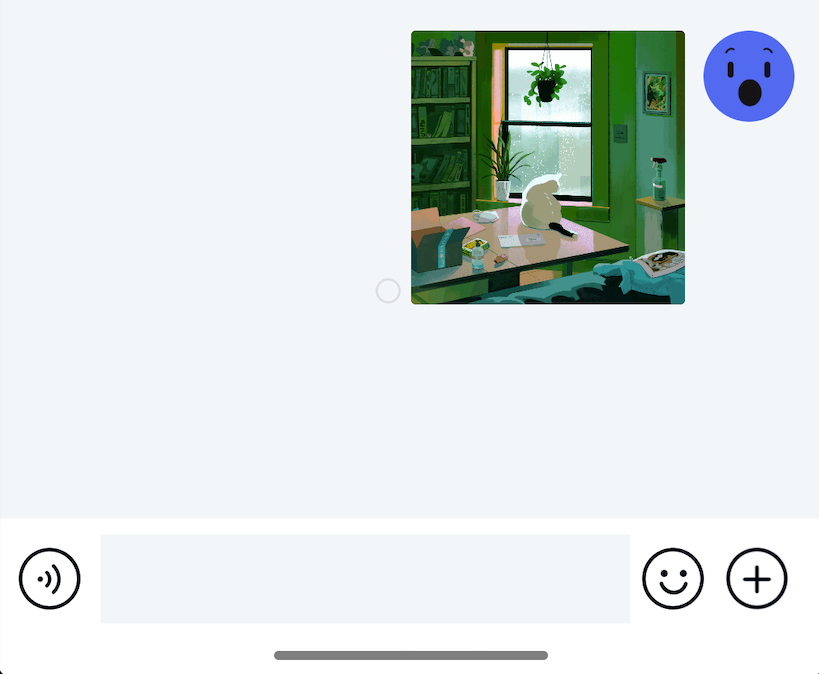
Modify input bar combination mode
The Chat UI SDK input bar provides voice/text toggle, content input, and extension area functionality. You can modify the input combination mode. For example, you can remove the voice/text toggle button and extension panel, keeping only the content input functionality.
Multiple combination modes are available:
| Combination mode | XML resource | Enum |
|---|---|---|
| Voice/text toggle + content input + extension panel | SCE | InputPanel.InputStyle.STYLE_SWITCH_CONTAINER_EXTENSION |
| Voice/text toggle + content input | SC | InputPanel.InputStyle.STYLE_SWITCH_CONTAINER |
| Content input + extension panel | CE | InputPanel.InputStyle.STYLE_CONTAINER_EXTENSION |
| Content input only | C | InputPanel.InputStyle.STYLE_CONTAINER |
To modify globally, change the default input mode. Copy the entire contents of nc_conversation_fragment.xml, create a file with the same name under res/layout/ in your application project, locate the NCExtension component, and set app:NCStyle="SCE" to change the default input display form.
To modify dynamically, extend the Chat UI SDK ChannelFragment to implement a custom channel page Activity. In the ChannelFragment subclass, call InputPanel#setInputPanelStyle(). The enum values accepted by this method are listed in the table above.
public class MyChannelFragment extends ChannelFragment {

    @Override
    public void onViewCreated(@NonNull View view, @Nullable Bundle savedInstanceState) {
        super.onViewCreated(view, savedInstanceState);
        mNCExtension.getInputPanel()
                .setInputPanelStyle(InputPanel.InputStyle.STYLE_CONTAINER_EXTENSION);
    }
}
Hide emoji panel button in input bar
When your app does not need to provide emoji input functionality, you can hide the emoji panel button through the Chat UI SDK global configuration.
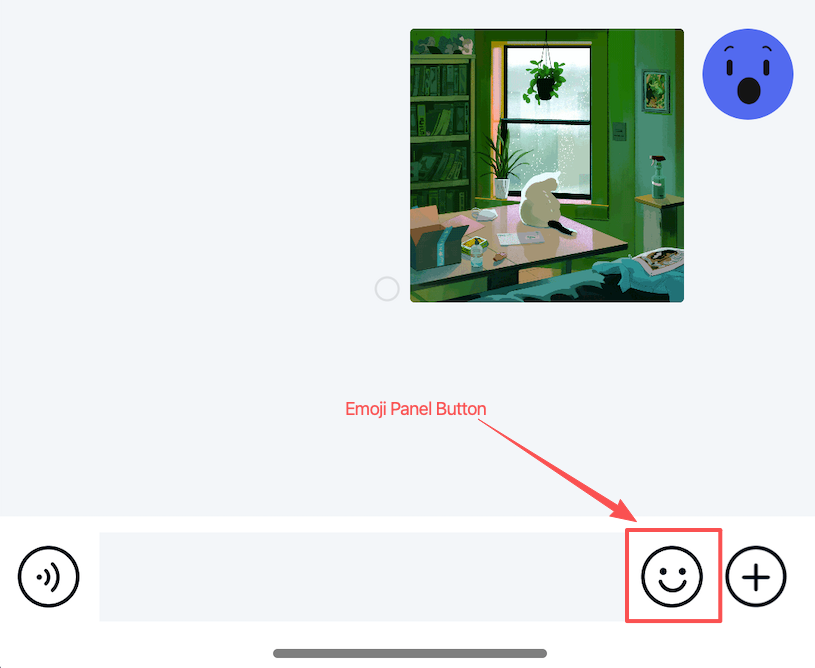
Hide the emoji panel button before entering the channel page.
NCChatUIConfig.featureConfig().setHideEmojiButton(true);
Input area extension panel
The panel displayed when clicking the + button in the input bar is called the extension panel. The extension panel displays currently available plugins.
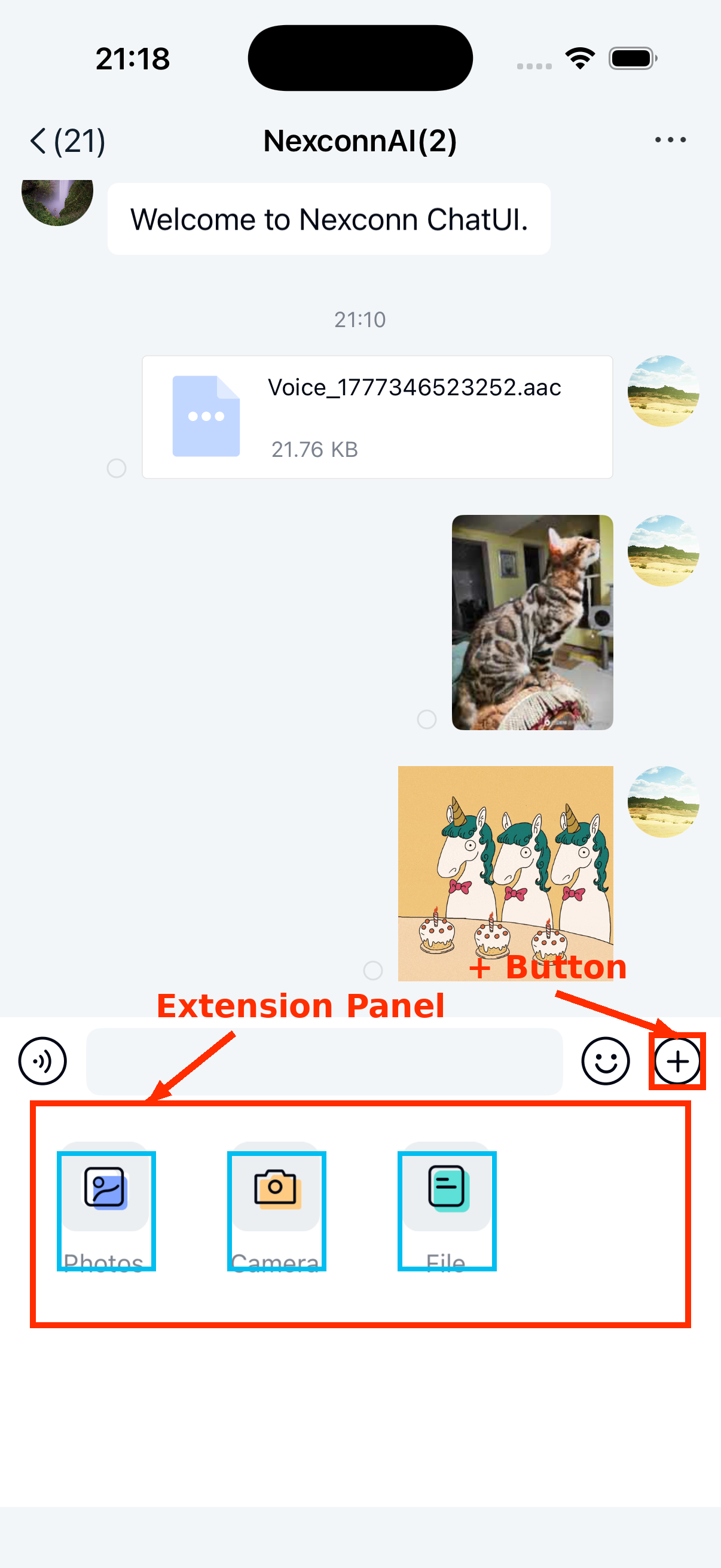
Extension panel plugin list
In the current source code, the extension panel includes only the built-in plugins ImagePlugin and FilePlugin by default. Other plugins come from two sources:
- External modules automatically detected and loaded through
NCExtensionManager.init(), such asio.nc.location.LocationExtensionModule,io.nc.callkit.NCCallModule, andio.nc.sticker.StickerExtensionModule. These modules only take effect when the corresponding dependencies exist in the application project. - Extension modules registered by the application itself, such as
ShortVideoExtensionModulein the current repository, or your customIExtensionModule.
The current repository does not include implementations of RecognizeExtensionModule or ContactCardExtensionModule. If you need voice-to-text or contact card plugins, implement them yourself following the custom extension method below, or integrate compatible modules you maintain.
Add other plugins
To learn how to add other plugins to the extension panel, refer to the following documentation:
Dynamically configure extension panel plugins
The Chat UI SDK extends panel capabilities through the combination of IExtensionModule and IExtensionConfig:
IExtensionModuleis used to register plugins, custom emoji pages, message receiving handlers, and other extension modules.IExtensionConfigis used to dynamically organize plugin order, remove plugins, or append custom plugins based on the current channel.
If your application needs to dynamically add, remove, or reorder extension panel plugins, you do not need to implement the IExtensionModule interface class. We recommend implementing these custom requirements by creating a custom extension panel configuration.
-
Extend
DefaultExtensionConfigto create a custom extension panel configuration classMyExtensionConfig, and override thegetPluginModules()method. You can add or remove extension items, or adjust plugin positions.Javapublic class MyExtensionConfig extends DefaultExtensionConfig {
@Override
public List<IPluginModule> getPluginModules(ChannelType channelType, String targetId) {
List<IPluginModule> pluginModules = super.getPluginModules(channelType, targetId);
ListIterator<IPluginModule> iterator = pluginModules.listIterator();
// Remove extension items
while (iterator.hasNext()) {
IPluginModule plugin = iterator.next();
// Example: remove FilePlugin
if (plugin instanceof FilePlugin) {
iterator.remove();
}
}
// Add extension items, example: add custom plugin MyPlugin
pluginModules.add(new MyPlugin());
return pluginModules;
}
} -
After SDK initialization, call the following method to set the custom input configuration. The SDK will display the extension panel according to this configuration.
JavaNCExtensionManager.getInstance().setExtensionConfig(new MyExtensionConfig());
Custom extension panel plugins
You can add custom plugins to the Chat UI SDK extension panel. Custom plugins must implement the IPluginModule interface class. Refer to IPluginModule.java in the Chat UI SDK source code and its concrete implementation classes.
The following example implements a custom plugin MyPlugin.
public class MyPlugin implements IPluginModule {
    private static final int REQUEST_MY_PLUGIN = 100;

      /**
     * Get plugin icon
     *
     * @param context Context
     * @return Image Drawable
     */
    @Override
    public Drawable obtainDrawable(Context context) {
        return context.getResources().getDrawable(R.drawable.my_plugin); // Example code
    }
    /**
     * Get plugin title
     *
     * @param context Context
     * @return Title string
     */
    @Override
    public String obtainTitle(Context context) {
        return context.getString(R.string.my_plugin); // Example code
    }
    /**
     * Called when plugin is clicked.
     * 1. If you need data from Extension, call the corresponding Extension methods to get it.
     * 2. If you need to start a new activity after clicking, use {@link Activity#startActivityForResult(Intent, int)}
     * or {@link NCExtension#startActivityForPluginResult(Intent, int, IPluginModule)}.
     * <p/>
     * Note: Do not hold fragment or extension objects long-term, or memory leaks will occur.
     *
     * @param currentFragment Fragment associated with the plugin.
     * @param extension NCExtension object
     * @param index Plugin sequence number in the plugin panel.
     */
    @Override
    public void onClick(Fragment currentFragment, NCExtension extension, int index) {
      Intent intent = new Intent(currentFragment.getActivity(), MyPluginActivity.class);
      extension.startActivityForPluginResult(intent, REQUEST_MY_PLUGIN, MyPlugin.this);
    }
    /**
     * Data result returned when activity ends.
     * <p/>
     * In {@link #onClick(Fragment, NCExtension, int)}, you may start a new activity. You have two ways to start it:
     * <p/>
     * 1. Use the system {@link Activity#startActivityForResult(Intent, int)} method
     * You need to handle {@link Activity#onActivityResult(int, int, Intent)} results in the corresponding Activity yourself.
     * <p/>
     * 2. If you call {@link NCExtension#startActivityForPluginResult(Intent, int, IPluginModule)}
     * then after receiving {@link Activity#onActivityResult(int, int, Intent)} in ChannelFragment,
     * you must call {@link NCExtension#onActivityPluginResult(int, int, Intent)}. NCExtension will then return
     * the data result through the IPluginModule onActivityResult method.
     * <p/>
     *
     * @param requestCode Request code when starting activity, will not exceed 255.
     * @param resultCode  Data result returned when activity ends.
     * @param data        Returned data.
     */
    @Override
    public void onActivityResult(int requestCode, int resultCode, Intent data) {

    }
}
After creating your custom extension panel plugin, refer to Dynamically configure extension panel plugins above to add the custom plugin to the extension panel.
Customize UI through XML resources
You can adjust interface layout, font size, color, and background color by modifying the corresponding layout files. Do not remove SDK default controls or arbitrarily modify View IDs.
| Chat UI SDK resource file | Location | Description |
|---|---|---|
nc_extension_board.xml | res/layout | Input box layout file. It is the container for the entire input box. Copy the entire contents of the Chat UI SDK source file and create a file with the same name under /res/layout in your project. |
nc_extension_input_panel.xml | res/layout | Input bar layout file. Copy the entire contents of the Chat UI SDK source file and create a file with the same name under /res/layout in your project. |
The above XML resources can also be obtained from the SDK download page.