Channel list page
The channel list page displays all channels on the current device. The local message database automatically creates the channel list after generating messages, sorted in reverse chronological order with pinned channels displayed first.
Chat UI provides channel list page implementations based on Activity and Fragment classes.
- Activity-based: Chat UI SDK provides a default channel list Activity that includes a title bar and channel list view. When the SDK needs to navigate to the channel list internally, it uses this Activity by default.
- Fragment-based: You can integrate the Chat UI channel list Fragment into a custom Activity to create a personalized interface. Register this Activity with Chat UI SDK to override the default channel list Activity.
Channel list interface
The channel list page typically consists of a title bar and a channel list.
The default ChannelListActivity provided by Chat UI includes a built-in title bar implementation. If you build a channel list page based on Fragment, you need to implement the title bar functionality yourself.
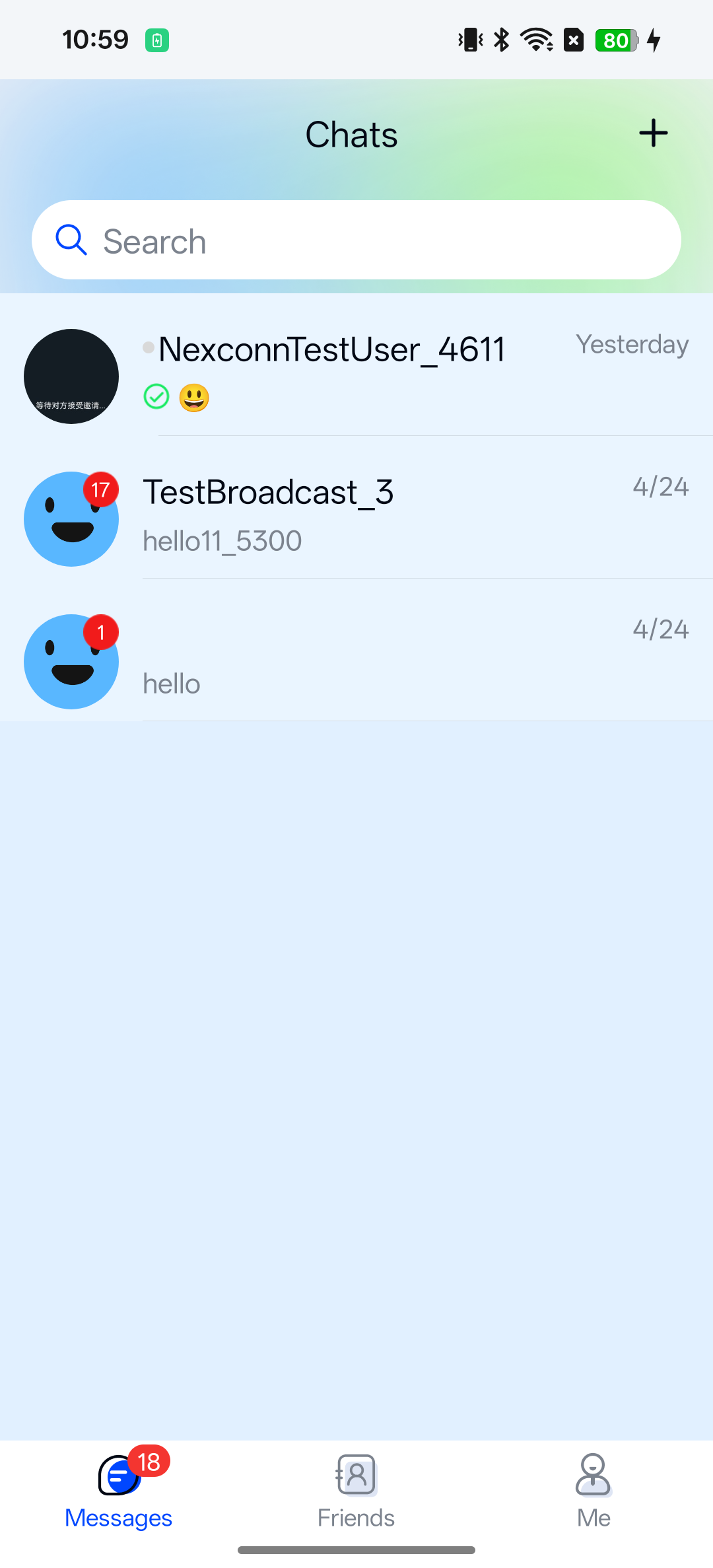
Title bar
Chat UI implements title bar functionality only in the default ChannelListActivity. It displays Channel list by default.
Channel list
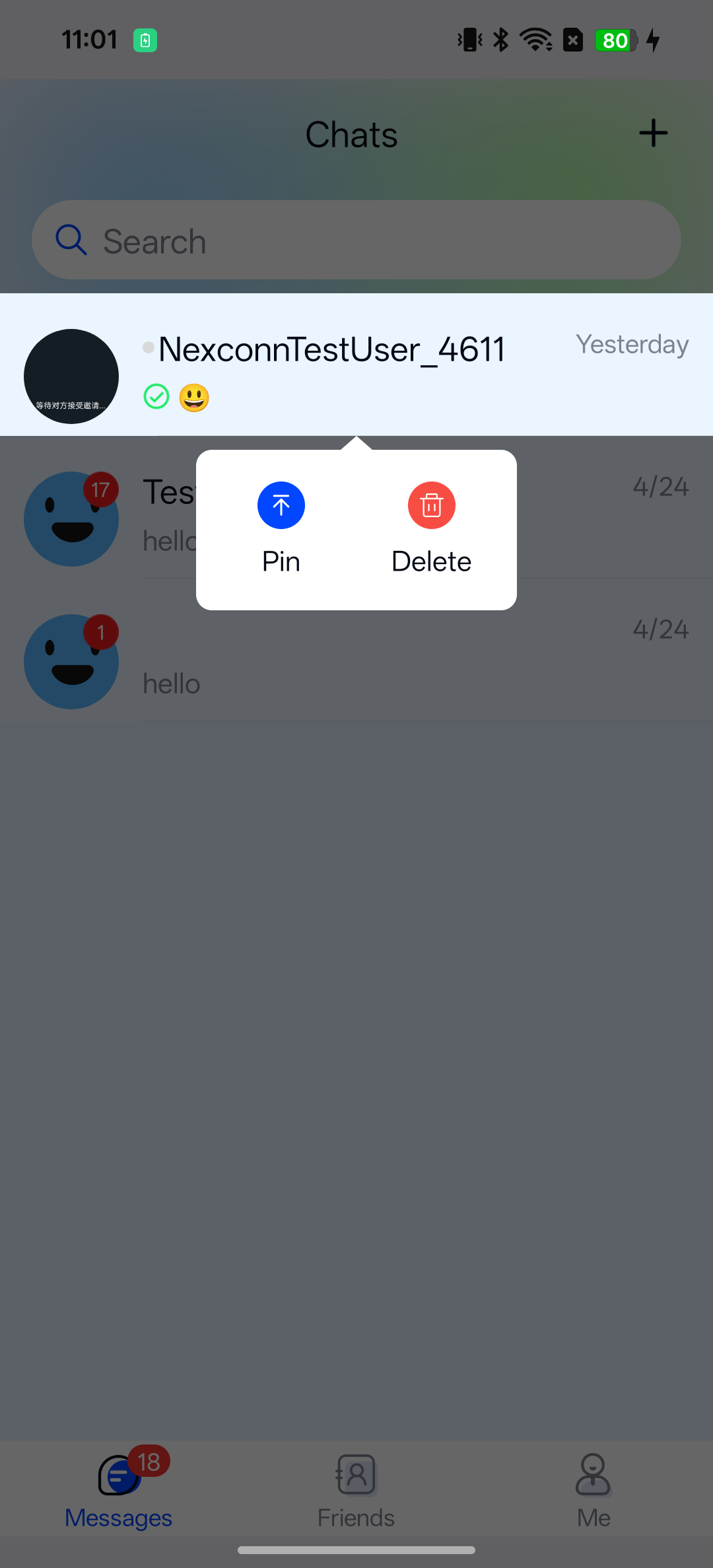
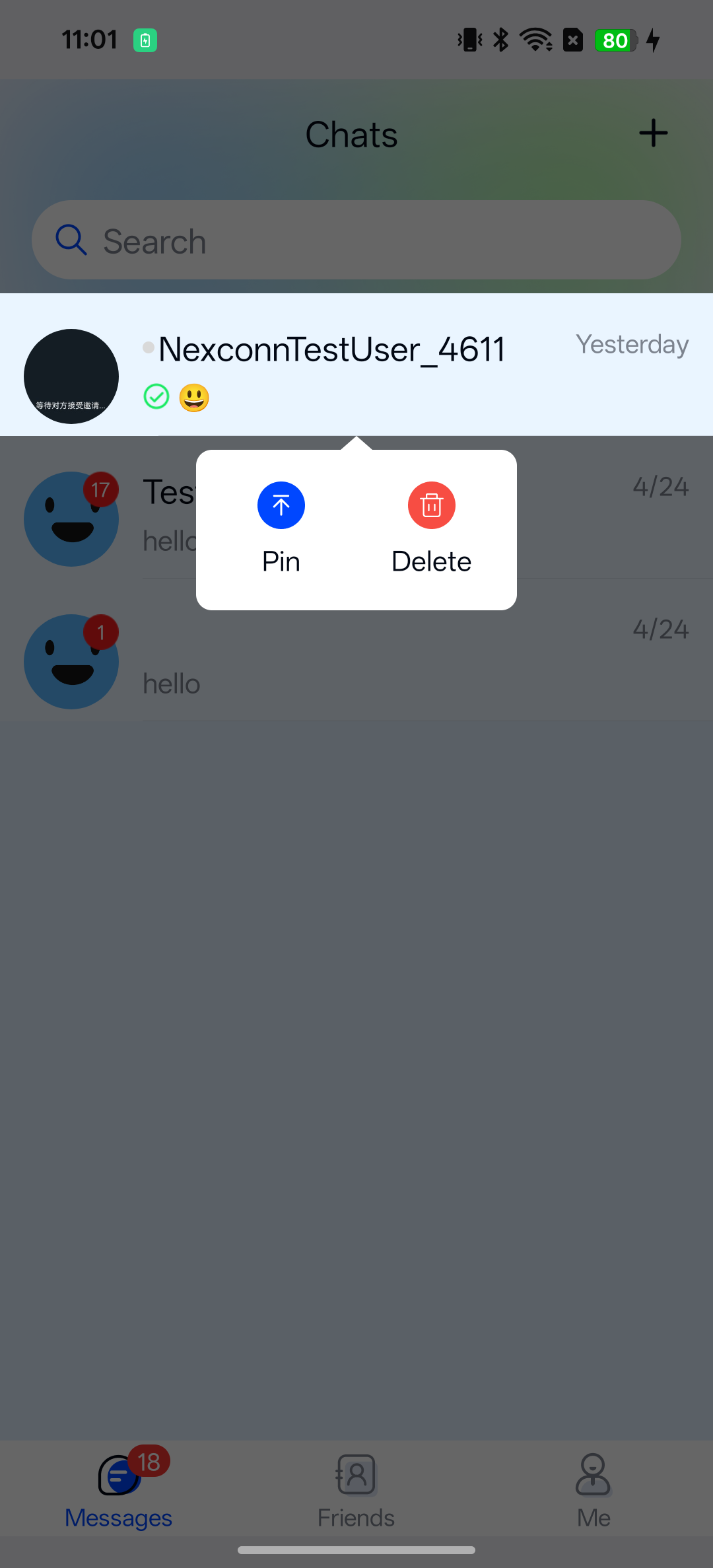
The channel list component displays all channels in reverse chronological order, with pinned channels appearing first. Long-pressing a channel in the list displays a context menu. Chat UI implements pin/unpin and delete channel functionality by default.
The default channel list item view is created by ConversationListProvider. You can extend BaseDataProcessor to aggregate (collapse) or filter channel items displayed in the list.
If Message synchronization is enabled, in scenarios where you log in on a new device or reinstall the app, the offline compensation mechanism can only retrieve direct and group channel messages from the most recent day (default offline compensation period is 1 day, adjustable up to 7 days). Channels beyond this time limit cannot be retrieved through the offline compensation mechanism. Therefore, the channel list after offline compensation may differ from the list on the original device or before uninstallation (this is not data loss).
Usage
Chat UI provides Activity and Fragment classes to create the channel list page. ChannelListActivity is the default channel list page. You can choose to use the default channel list Activity directly, extend ChannelListActivity, or use ChannelListFragment to build a custom channel list Activity.
Chat UI SDK implements navigation from the channel list page to the corresponding channel page when a channel is clicked by default.
Launch the channel list page
Chat UI provides the following ways to launch the channel list:
- Built-in routing:
RouteUtils.routeToChannelListActivity(context, title); - Standard launch:
startActivity(new Intent(context, ChannelListActivity.class));
Using RouteUtils
RouteUtils is Chat UI's built-in Activity router that encapsulates navigation methods for SDK internal pages.
If you build a custom channel list Activity, you must register the custom Activity with RouteUtils before you can navigate to it through RouteUtils. Otherwise, navigation will go to the SDK's default ChannelListActivity.
Navigate to the channel list Activity:
Parameters
| Parameter | Type | Description |
|---|---|---|
| context | Context | Activity context |
| title | String | Channel list page title. If empty, the default title "Channel list" will be displayed. |
Sample code
- Kotlin
- Java
import ai.nexconn.chatui.utils.route.RouteUtils

RouteUtils.routeToChannelListActivity(this, title)
import ai.nexconn.chatui.utils.route.RouteUtils;

RouteUtils.routeToChannelListActivity(this, title);
Navigate via intent
Use the default ChannelListActivity.newIntent(@NonNull Context context) helper when you want to open the SDK's built-in channel list page with the standard Android navigation mechanism.
- Kotlin
- Java
import ai.nexconn.chatui.channellist.ChannelListActivity

startActivity(ChannelListActivity.newIntent(this))
import ai.nexconn.chatui.channellist.ChannelListActivity;

startActivity(ChannelListActivity.newIntent(this));
Extend the default channel list Activity
You can create a custom channel list Activity by extending ChannelListActivity to customize the channel list page. Note that you must register the custom channel list Activity with RouteUtils. After registration, when the SDK needs to navigate to the channel list, it will navigate to your registered custom channel list Activity. The registration method only needs to be called once during the application lifecycle in the main process.
- Kotlin
- Java
RouteUtils.registerActivity(
  RouteUtils.ChatUIActivityType.ChannelListActivity,
  MyChannelListActivity::class.java
)
RouteUtils.registerActivity(RouteUtils.ChatUIActivityType.ChannelListActivity, MyChannelListActivity.class);
Build a custom channel list Activity using Fragment
The channel list Fragment class provided by Chat UI SDK is named ChannelListFragment. To facilitate custom channel list pages in your application, we recommend extending the channel list Fragment class to build a custom channel list Activity. Note that the custom channel list Activity needs to be registered with Chat UI SDK to replace the default channel list Activity.
-
You can integrate the Chat UI channel list Fragment into your application Activity. The following example declares a new
MyChannelListActivity.xml<activity
android:name=".ui.activity.MyChannelListActivity"
android:launchMode="singleTop"
android:screenOrientation="portrait"
android:windowSoftInputMode="stateHidden|adjustResize">
</activity> -
Define the Activity layout. This example uses
activity_channel_list.xml.xml<?xml version="1.0" encoding="utf-8"?>
<LinearLayout xmlns:android="http://schemas.android.com/apk/res/android"
android:orientation="vertical"
android:layout_width="match_parent"
android:layout_height="match_parent">
<!-- This container is used to dynamically place the fragment. -->
<FrameLayout
android:id="@+id/container"
android:layout_width="match_parent"
android:layout_height="match_parent" />
</LinearLayout> -
Create a subclass by extending Chat UI SDK's
ChannelListFragment, for exampleAppChannelListFragment. Use your custom channel list Fragment subclass in theonCreate()method ofMyChannelListActivity.- Kotlin
- Java
kotlinclass MyChannelListActivity : FragmentActivity() {
override fun onCreate(savedInstanceState: Bundle?) {
super.onCreate(savedInstanceState)
setContentView(R.layout.activity_channel_list)
val channelListFragment = AppChannelListFragment()
supportFragmentManager
.beginTransaction()
.replace(R.id.container, channelListFragment)
.commit()
}
}Javaclass MyChannelListActivity extends FragmentActivity {
@Override
protected void onCreate(@Nullable Bundle savedInstanceState) {
super.onCreate(savedInstanceState);
setContentView(R.layout.activity_channel_list);
ChannelListFragment channelListFragment = new AppChannelListFragment();
FragmentManager manager = getSupportFragmentManager();
FragmentTransaction transaction = manager.beginTransaction();
transaction.replace(R.id.container, channelListFragment);
transaction.commit();
}
} -
Register the custom channel list Activity with
RouteUtilsto replace the default Chat UI channel list Activity. This method only needs to be registered once during the application lifecycle in the main process.Parameters
Parameter Type Description activityType ChatUIActivityType Chat UI built-in Activity type enum. Use ChatUIActivityType.ChannelListActivityhereclass Class<? extends Activity>Class name of the application's custom channel list Activity. After registration, when SDK internal pages need to navigate to the channel list, the SDK will automatically navigate to your registered application Activity.
Sample code
- Kotlin
- Java
kotlinRouteUtils.registerActivity(
RouteUtils.ChatUIActivityType.ChannelListActivity,
MyChannelListActivity::class.java
)JavaRouteUtils.registerActivity(RouteUtils.ChatUIActivityType.ChannelListActivity, MyChannelListActivity.class);
Customization
Modify channel avatar shape
Each channel item in the channel list displays an avatar icon (not the avatar in the message list on the chat page). Direct channels display the other user's avatar, group channels display the group avatar, and gathered channels display a default avatar or an avatar actively set by the application. You can control the channel avatar style in the channel list separately through Chat UI global configuration.
Channel avatars display as rectangles by default and can be changed to circles. The default avatar display size is 48dp*48dp. This method takes effect after the user sets an avatar. Without an avatar set, it cannot be changed to rounded corners using this method and defaults to a gray rectangular block. Call the following code after app initialization:
   NCChatUIConfig.featureConfig().setChatUIImageEngine(new GlideChatUIImageEngine() {
            @Override
            public void loadConversationListPortrait(@NonNull Context context, @NonNull String url, @NonNull ImageView imageView, BaseChannel channel) {
                Glide.with(context).load(url)
                        .apply(RequestOptions.bitmapTransform(new CircleCrop()))
                        .into(imageView);
            }
        });
To modify the avatar style displayed on messages in the chat page, see Channel page.
Set the default number of channels to load
When loading the channel list (entering the channel list page, pulling up, pulling down), Chat UI loads 100 channel records from local storage by default. You can modify the default number of channel items to load.
NCChatUIConfig.channelListConfig().setCountPerPage(100);
The client's channel list is generated from local messages, so the channel list is only retrieved locally.
Customize the long-press channel dialog style
Chat UI SDK displays the following dialog by default when long-pressing a channel. You can implement custom handling logic by returning true in the onConversationLongClick() method described in Set channel list listener.
Add custom header, footer, and empty layouts
Chat UI SDK's ChannelListFragment supports adding custom header, footer, and empty views to the channel list.
-
Create a subclass by extending Chat UI's
ChannelListFragment. -
Implement methods such as
addHeaderView(),addFooterView(), andsetEmptyView()in the subclass. -
Call your own
addHeaderView(),addFooterView(), andsetEmptyView()methods as needed in the subclass'sonViewCreated()method.Java@Override
public void onViewCreated(@NonNull View view, @Nullable Bundle savedInstanceState) {
super.onViewCreated(view, savedInstanceState);
addHeaderView(view);
addFooterView(view);
setEmptyView(view);
}
/**
* @param view Custom list header view
*/
public void addHeaderView(View view) {
mAdapter.addHeaderView(view);
}
/**
* @param view Custom list footer view
*/
public void addFooterView(View view) {
mAdapter.addFootView(view);
}
/**
* @param view Custom list empty data view
*/
public void setEmptyView(View view) {
mAdapter.setEmptyView(view);
}
/**
* @param emptyId Custom list empty data LayoutId
*/
public void setEmptyView(@LayoutRes int emptyId) {
mAdapter.setEmptyView(emptyId);
}
Clear notification panel notifications
Chat UI SDK supports clearing all notifications from the notification panel when opening the channel list page or channel page. This switch is enabled by default in the current Chat UI source code.
To change this behavior, create an nc_config.xml file in your application's res/values directory and set the nc_wipe_out_notification_message variable. This XML configuration is a Chat UI global default setting and affects both the channel page and channel list page.
<!--Whether to clear notification panel notifications when entering a channel or channel list-->
<bool name="nc_wipe_out_notification_message">true</bool>
Customize UI through XML resources
Chat UI supports changing the display style of the channel list and channel items within it. If the default display style does not meet your needs, you can modify the background, font color, or adjust component positions in the layout by modifying XML resource files.
| Chat UI resource file | Location | Description |
|---|---|---|
nc_conversationlist_fragment.xml | res/layout | Display style of the channel list. Copy the entire contents of the Chat UI source file and create a file with the same name under /res/layout in your application project. |
nc_conversationlist_item.xml | res/layout | Display style of each channel item in the channel list. Copy the entire contents of the Chat UI source file and create a file with the same name under /res/layout in your application project. |
The above XML resources can also be obtained from the official SDK download page.
Do not delete views in the XML or modify IDs when making changes, as this will affect SDK default logic and cause the SDK to crash.
Customize channel item display templates
The table below lists the built-in channel list item display templates in Chat UI. If you need to modify the display logic of channel list items, we recommend creating custom display templates and registering them.
The current default channel list template in the source code is the unified ConversationListProvider, which implements the IViewProvider<BaseUiChannel> interface and renders all list items. If you need to customize display by channel type or business rules, we recommend implementing IViewProvider<BaseUiChannel> yourself, or extending ConversationListProvider and overriding the matching and binding logic.
-
Create
CustomConversationProviderby implementingIViewProvider<BaseUiChannel>or extendingConversationListProvider. -
Override
isItemViewType()and other methods you need to customize.Javapublic class CustomConversationProvider extends ConversationListProvider {
@Override
public boolean isItemViewType(BaseUiChannel item) {
//Based on business needs, return true when the item is a channel this template should handle, otherwise return false
//This example customizes the direct channel template
return item.mCore.getChannelType() == ChannelType.DIRECT;
}
@Override
public void bindViewHolder(ViewHolder holder, BaseUiChannel uiChannel, int position, List<BaseUiChannel> list, IViewProviderListener<BaseUiChannel> listener) {
//Customize handling based on business needs
super.bindViewHolder(holder, uiChannel, position, list, listener);
}
} -
Register the custom template or replace the SDK built-in template.
Java//Get the channel template manager
ProviderManager<BaseUiChannel> providerManager = NCChatUIConfig.channelListConfig().getProviderManager();
//Replace the SDK default unified channel list template with a custom template
providerManager.replaceProvider(ConversationListProvider.class, new CustomConversationProvider());
//Register a custom template
providerManager.addProvider(new CustomSystemConversationProvider());
Other customization
- Delete channel: Chat UI displays a dialog by default when long-pressing a channel, implementing delete channel functionality. If the existing implementation does not meet your needs, you can use the delete channel API provided by NCChatUI.
- Get channel: Chat UI SDK implements channel retrieval and display logic; for customization, use
BaseChannel.createChannelsQuery/getChannels/getUnreadChannels. - Channel draft: Chat UI implements draft display and refresh by default; for customization, use
NCChatUI.saveDraftandBaseChannel.clearDraft/getChannels. - Pin channel: Chat UI implements pin logic by default; for customization, use
BaseChannel.pin/unpin/getPinnedChannels. - Custom channel list data processing: Supports filtering channels by channel type or custom rules to display filtered items in the channel list.