Customize message item display
The Chat UI SDK uses message display templates to control how messages appear on the channel screen. You can modify the display template for specific message types to customize their appearance.
- The SDK provides default display templates for built-in message types that appear on the channel screen (see Message type overview). You can create custom templates to replace the defaults.
- Custom message types created by your app (see Custom message types) have no default display template. If you need to display custom message types on the channel screen, you must create a corresponding message display template and provide it to the SDK.
To display custom message types on the channel screen, you must create a corresponding message display template. Otherwise, the SDK cannot render that message type.
Modify message UI through style resources
You can adjust the background images, text colors, and font sizes of built-in messages by replacing the Chat UI style resources. This approach works well for lightweight customization of the channel screen.
Replace message background images
Each message on the Chat UI channel screen has a bubble background. Blue bubbles indicate sent messages, white bubbles indicate received messages.
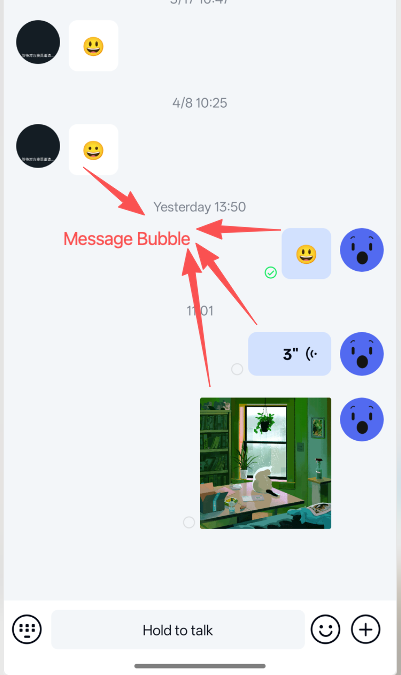
The Chat UI references two 9-patch files in the base message item provider class BaseMessageItemProvider. You can create files with the same names in your application's res/drawable-xhdpi/ directory to replace the default .9.png image resources and change the message bubble appearance.
| Resource path and name | Description |
|---|---|
| res/drawable-xhdpi/nc_ic_bubble_right.9.png | Right bubble for sent messages |
| res/drawable-xhdpi/nc_ic_bubble_left.9.png | Left bubble for received messages |
Modify font color or size for built-in text messages
You can customize the font color or size for built-in text messages in the Chat UI.
Copy the nc_translate_text_message_item.xml file from the Chat UI source code to your application's res/layout directory, then modify the font size and color in that layout file.
To override the base text message layout directly, copy nc_text_message_item.xml instead.
Replace built-in message display templates
The Chat UI provides a message display template for each message type. All message display templates inherit from BaseMessageItemProvider.
If you need to change the display appearance of SDK built-in messages and require extensive customization, you can extend BaseMessageItemProvider to create a new message display template, then provide that custom template to the SDK to replace the default.
Built-in default message display templates
| Message type | Template class name |
|---|---|
| Text message TextMessage | TextMessageItemProvider |
| Image message ImageMessage | ImageMessageItemProvider |
| Voice message HDVoiceMessage | HQVoiceMessageItemProvider |
| File message FileMessage | FileMessageItemProvider |
| Location message LocationMessage | Provided by the external locationKit plugin |
| Real-time location sharing RealTimeLocationStartMessage | Provided by the external locationKit plugin |
| Short video message ShortVideoMessage | ShortVideoMessageItemProvider |
| GIF message GIFMessage | GIFMessageItemProvider |
| Combined forward message CombineMessage | CombineMessageItemProvider |
| Information notification message InformationNotificationMessage | InformationNotificationMessageItemProvider |
| Group notification message | GroupNotificationMessageItemProvider |
Step 1: Create a custom template
This example shows how to customize the display template for text messages:
-
Create a custom text message display layout file
my_text_message.xml.xml<?xml version="1.0" encoding="utf-8"?>
<TextView xmlns:android="http://schemas.android.com/apk/res/android"
android:id="@+id/my_text"
style="@style/TextStyle.Alignment"
android:layout_width="wrap_content"
android:layout_height="wrap_content"
android:padding="12dp"
android:textColor="@android:color/holo_green_dark"
android:textColorLink="@android:color/holo_red_dark"
android:fontFamily="sans-serif"
android:textSize="14sp"
android:maxWidth="223dp" /> -
Create a custom template
MyTextMessageProviderthat extendsBaseMessageItemProvider, specify the message type in<>asTextMessage, and implement all abstract methods as prompted by Android Studio.Javapublic class MyTextMessageProvider extends BaseMessageItemProvider<TextMessage> {
public MyTextMessageProvider() {
mConfig.centerInHorizontal = true; // Configure display properties to center this message.
}
/**
* Generate ViewHolder from custom layout file
*/
@Override
protected ViewHolder onCreateMessageContentViewHolder(ViewGroup viewGroup, int i) {
View textView = LayoutInflater.from(viewGroup.getContext()).inflate(R.layout.my_text_message, viewGroup, false);
return new ViewHolder(viewGroup.getContext(), textView);
}
/**
* Set values for controls in the layout file based on message content.
*/
@Override
protected void bindMessageContentViewHolder(ViewHolder viewHolder, ViewHolder viewHolder1, TextMessage textMessage, UiMessage uiMessage, int i, List<UiMessage> list, IViewProviderListener<UiMessage> iViewProviderListener) {
TextView textView = viewHolder.getView(R.id.my_text);
textView.setText(textMessage.getText());
}
/**
* This method is called when controls in the custom layout are clicked. Implement click logic here.
* This example ignores click handling.
*/
@Override
protected boolean onItemClick(ViewHolder viewHolder, TextMessage textMessage, UiMessage uiMessage, int i, List<UiMessage> list, IViewProviderListener<UiMessage> iViewProviderListener) {
return false;
}
/**
* Return whether the message type should be displayed by this template.
* This example indicates that this template only handles text message types.
*/
@Override
protected boolean isMessageViewType(MessageContent messageContent) {
return messageContent instanceof TextMessage;
}
/**
* When this message type is the last message in a channel, this method returns the description content to display in the channel list.
* This example returns the actual content of the text message.
*/
@Override
public Spannable getSummarySpannable(Context context, TextMessage textMessage) {
return new SpannableString(AndroidEmoji.ensure(textMessage.getText()));
}
}
Step 2: Replace the default template
After creating a custom template, call the following method to replace the SDK's default message display template. After replacement, the SDK automatically uses the custom template for that message type when rendering messages.
-
Code example
This example uses the custom template
MyTextMessageProvider.JavaNCChatUIConfig.channelConfig().replaceMessageProvider(TextMessageItemProvider.class, new MyTextMessageProvider()); -
Replacement method:
Javavoid replaceMessageProvider(Class oldProviderClass, IMessageProvider provider);Parameter Description oldProviderClass Class name of the SDK default message display template. See Built-in default message display templates. provider Custom message display template object.
Step 3: Configure template properties
The Chat UI uses the message display configuration class MessageItemProviderConfig in the base message item provider class BaseMessageItemProvider to control some style properties of message templates. In the constructor of a BaseMessageItemProvider subclass template, you can directly access the message display configuration object mConfig and modify the following property values:
| Message display configuration property | Description | Default value |
|---|---|---|
| showPortrait | Whether to show avatar. | true |
| centerInHorizontal | Whether to center message content horizontally. | false |
| showWarning | Whether to show warning for failed sends. | true |
| showProgress | Whether to show send progress. | true |
| showSummaryWithName | Whether to show sender name in channel content. | true |
| showReadState | Whether to show read receipt status icon next to messages in direct channels. | false |
| showContentBubble | Whether to show message bubble. | true |
For example, in the following code, we modify the default property values to center messages using this template and enable read receipt status icons in direct channels:
public MyCustomMessageProvider() {
  mConfig.showReadState = true; // Whether to show read receipt status icon next to messages in direct channels. Default is false.
  mConfig.centerInHorizontal = true; // Configure display properties to center this message.
}