Voice messages
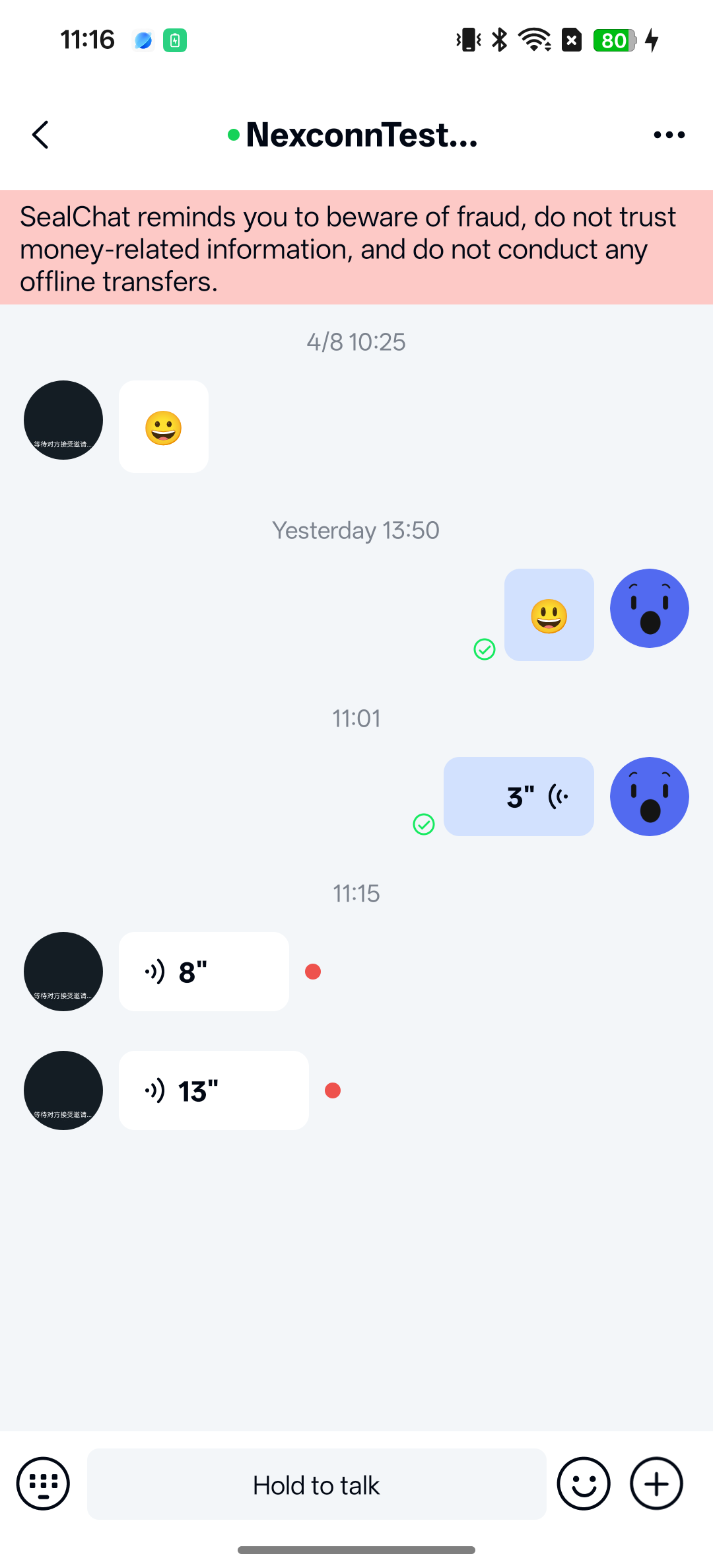
Users can record and send voice messages through the built-in input component in Chat UI. Messages appear in the message list component on the channel page. By default, the SDK generates and sends messages containing an HD voice message content object HDVoiceMessage (type identifier: RC:HQVcMsg).
Limitations
Voice input functionality has the following limitations:
- Chat UI supports sending voice messages only in direct channels and group channels.
- Users must record audio content for at least 1 second and less than 60 seconds.
- Users cannot pause while recording a voice message.
- Voice messages cannot be sent during video calls or voice calls.
Usage
Chat UI enables voice message input functionality by default in the input panel (InputPanel) component. The input panel includes a toggle button for voice input.
Send voice messages
To send a voice message, users must first record the message through AudioRecordManager in the InputPanel. By default, the voice message icon appears on the left side of the input field. Tapping this icon displays the record button ("Press to speak"). Users can record a voice message by tapping the record button. The length must be at least one second and less than 60 seconds. If the message is less than one second before releasing the button, the message is not saved. During recording, users can slide up to cancel or abandon the cancellation. Once the button is released, the SDK sends the recorded content by default. Preview is not supported before sending voice messages. Audio files in voice messages cannot be paused during playback.
Voice messages in the message list
You can receive voice messages in direct channels, group channels, and system channels. Voice messages appear in the message list.
Users can view and play voice messages by tapping the play button. Unplayed voice messages display a red dot next to them, and messages can be played multiple times. However, users can only listen to voice messages in the client application and cannot save them to their device. You can listen to only one audio file at a time in a channel. If you try to play another message while listening to a message, the first message pauses.
Chat UI downloads HD voice messages by default and continuously plays unheard voice messages below the current message after tapping play. You can modify the global configuration to disable continuous playback of unheard voice messages.
- Kotlin
- Java
NCChatUIConfig.channelConfig().NC_play_audio_continuous = false
NCChatUIConfig.channelConfig().NC_play_audio_continuous = false;
Chat UI automatically downloads HD voice messages by default when online. You can disable this behavior through global configuration:
- Kotlin
- Java
NCChatUIConfig.channelConfig().NC_enable_automatic_download_voice_msg = false
NCChatUIConfig.channelConfig().NC_enable_automatic_download_voice_msg = false;
If you modify the Chat UI default configuration, you can create an nc_config.xml file in the application res/values directory and add the following configuration items:
<bool name="nc_play_audio_continuous">true</bool>
<bool name="nc_enable_automatic_download_voice_msg">true</bool>
Customization
Voice message customization involves the voice input toggle icon in the input panel, the audio recording interface, and the HD voice message display UI.
Customize voice message UI
Chat UI generates and sends HD voice messages (RC:HQVcMsg) by default, using the HQVoiceMessageItemProvider template to display them in the message list.
All message display templates inherit from BaseMessageItemProvider<CustomMessage>. You can inherit from BaseMessageItemProvider<CustomMessage>, implement your own HD voice message display template class, and provide the custom template to the SDK.
You can also directly replace the style resources, string resources, and icon resources referenced in the HD voice message display template. See the resources referenced in HQVoiceMessageItemProvider.java in the Chat UI source code.
For example, you can copy the entire contents of nc_item_hq_voice_message.xml from the Chat UI source code, create a /res/layout/nc_item_hq_voice_message.xml file in your project, and modify the style values defined in it. Do not remove SDK default controls or arbitrarily modify view IDs.
Input panel style resources
To customize the input panel style, you can copy the entire contents of nc_extension_input_panel.xml from the Chat UI source code, create a /res/layout/nc_extension_input_panel.xml file in your project, and modify the style values defined in it. Do not remove SDK default controls or arbitrarily modify view IDs.
Recording popup style resources
When recording starts, a recording popup appears in the center of the screen. To customize the style in the voice message recording popup, you can copy the entire contents of nc_voice_record_popup.xml from the Chat UI source code, create a /res/layout/nc_voice_record_popup.xml file in your project, and modify the style values defined in it. Do not remove SDK default controls or arbitrarily modify view IDs.
Icon resources
The following table shows customizable icons.
| Icon | Image | Description |
|---|---|---|
| nc_ext_toggle_voice |  | Icon used as the voice input button to switch to the voice message recording view when entering messages. |
| nc_voice_send_play3 |  | Icon in the HD voice message bubble sent by the local user. When playing a voice message, this icon plays continuously with nc_voice_send_play1 and nc_voice_send_play2 to form an animation. |
| nc_voice_receive_play3 |  | Icon in the HD voice message bubble received by the local user. When playing a voice message, plays continuously with nc_voice_receive_play1 and nc_voice_receive_play2 to form an animation. |
| nc_voice_hq_message_download_error |  | Icon displayed when an error occurs downloading a voice message. |
Hide the voice input toggle button
To modify globally, you can change the global default input mode. Create res/layout/nc_conversation_fragment.xml in your application project, find the NCExtension component, and set app:NCStyle to CE to hide the voice/text toggle button.
To modify dynamically, you need to inherit from Chat UI's ChannelFragment and override the setInputPanelStyle() method in the subclass. This approach requires registering and using a custom channel page Activity in Chat UI. See Integrate channel UI.
- Kotlin
- Java
class MyChannelFragment : ChannelFragment() {
    override fun onViewCreated(view: View, savedInstanceState: Bundle?) {
        super.onViewCreated(view, savedInstanceState)
        mNCExtension.inputPanel
            .setInputPanelStyle(InputPanel.InputStyle.STYLE_CONTAINER_EXTENSION)
    }
}
public class MyChannelFragment extends ChannelFragment {

    @Override
    public void onViewCreated(@NonNull View view, @Nullable Bundle savedInstanceState) {
        super.onViewCreated(view, savedInstanceState);
        mNCExtension.getInputPanel()
                .setInputPanelStyle(InputPanel.InputStyle.STYLE_CONTAINER_EXTENSION);
    }
}