User online status
Overview
Chat UI SDK displays the online status of users in real time, including both friends and non-friends.
This feature is disabled by default. Enable it through NCChatUIConfig.
When enabled, an online status indicator appears to the left of the user's name in the channel list, contact list, channel screen, and profile page.
Online status indicators:
- Green circle: User is online
- Gray circle: User is offline
Display examples
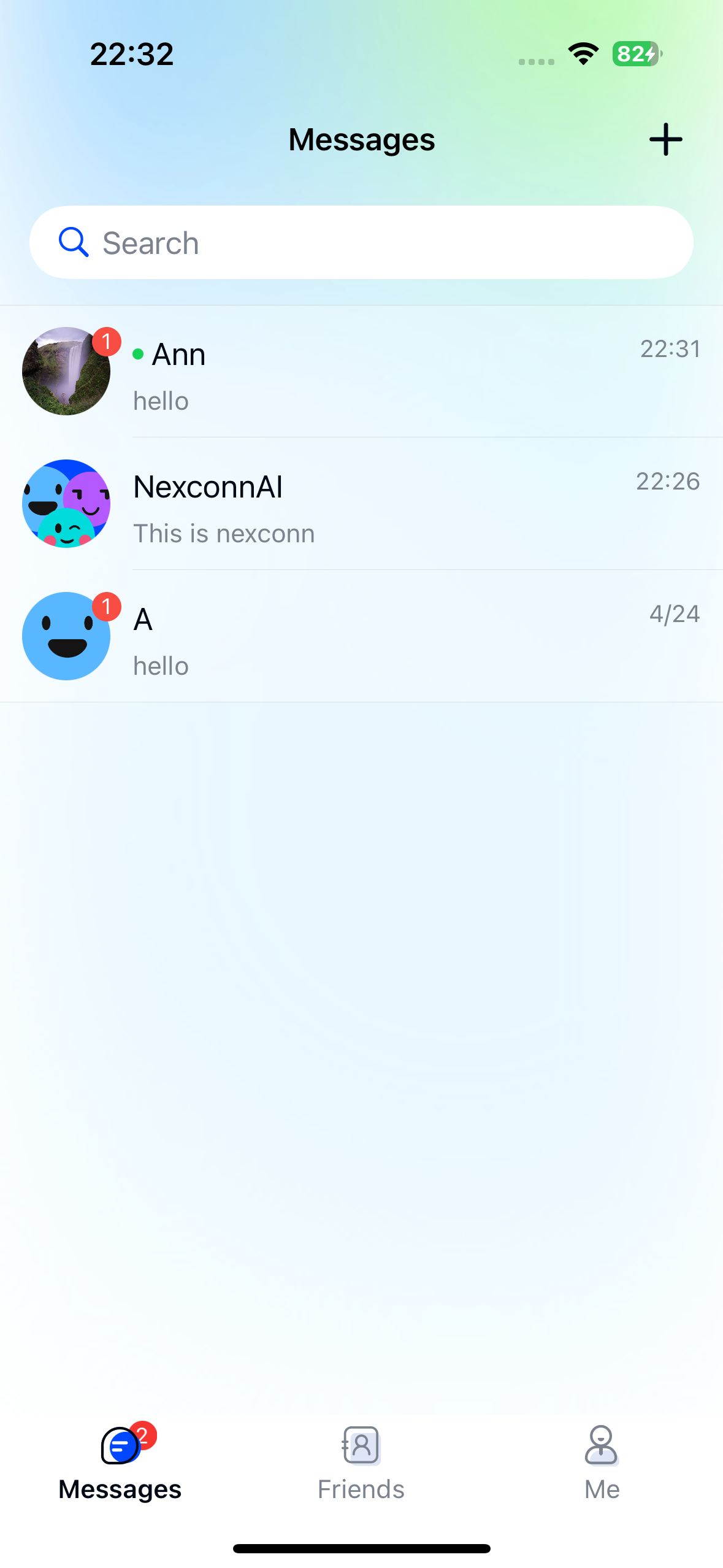
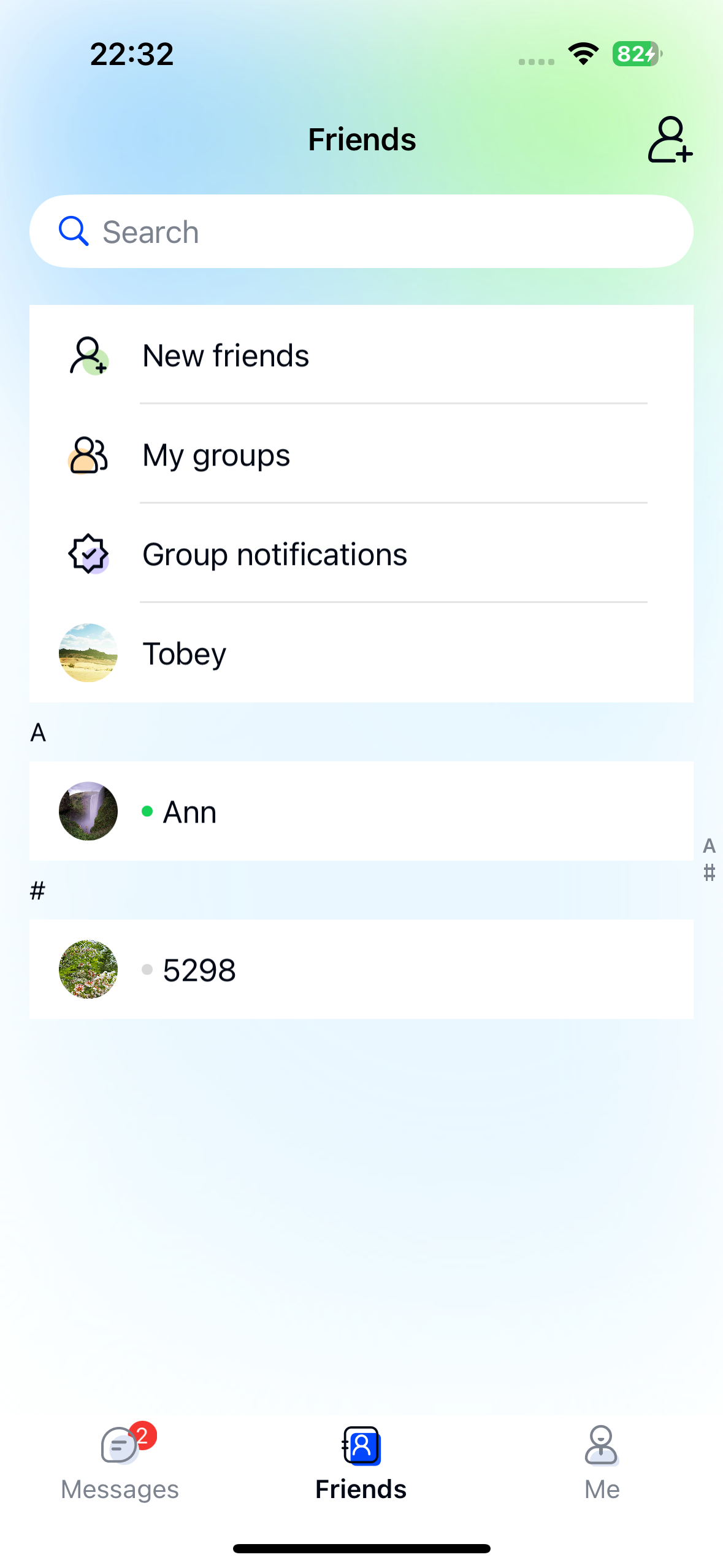
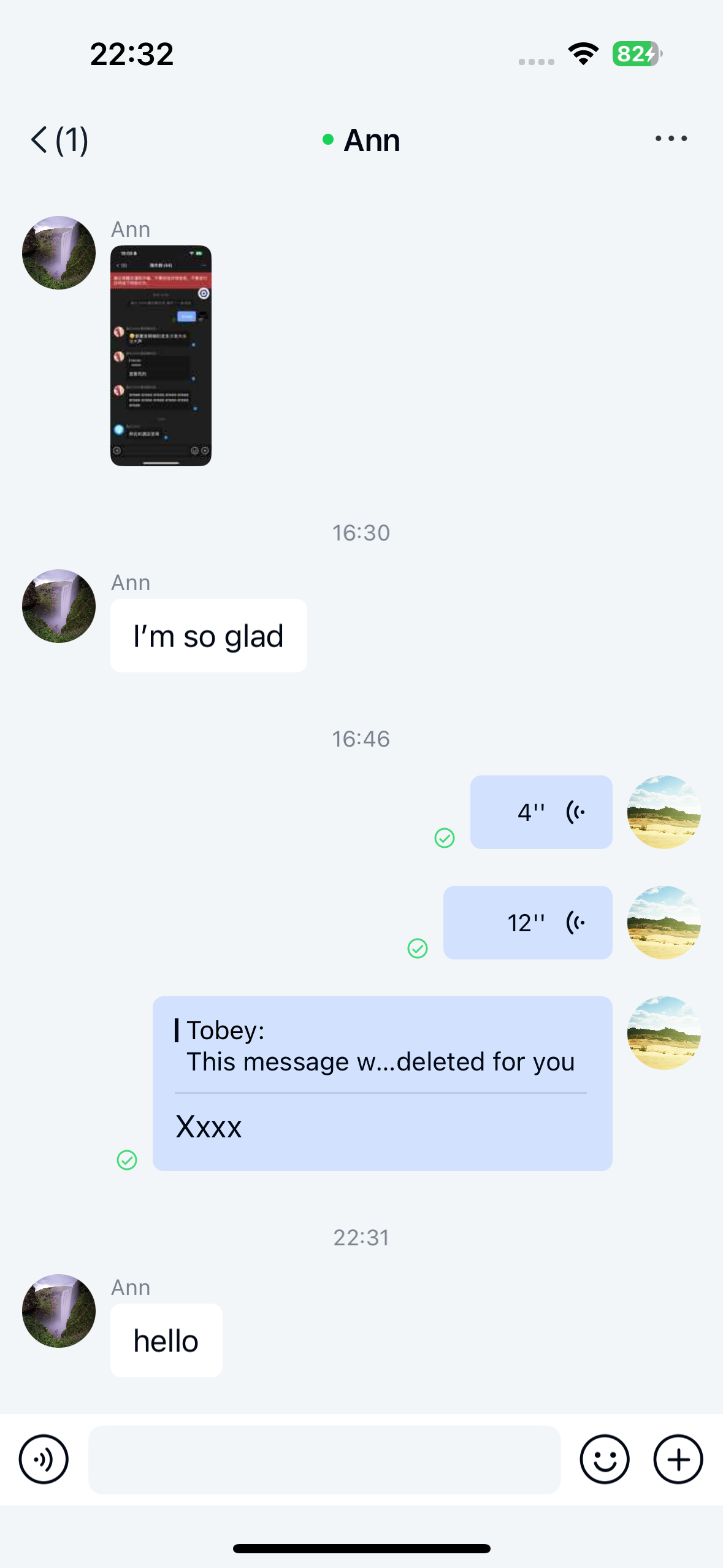
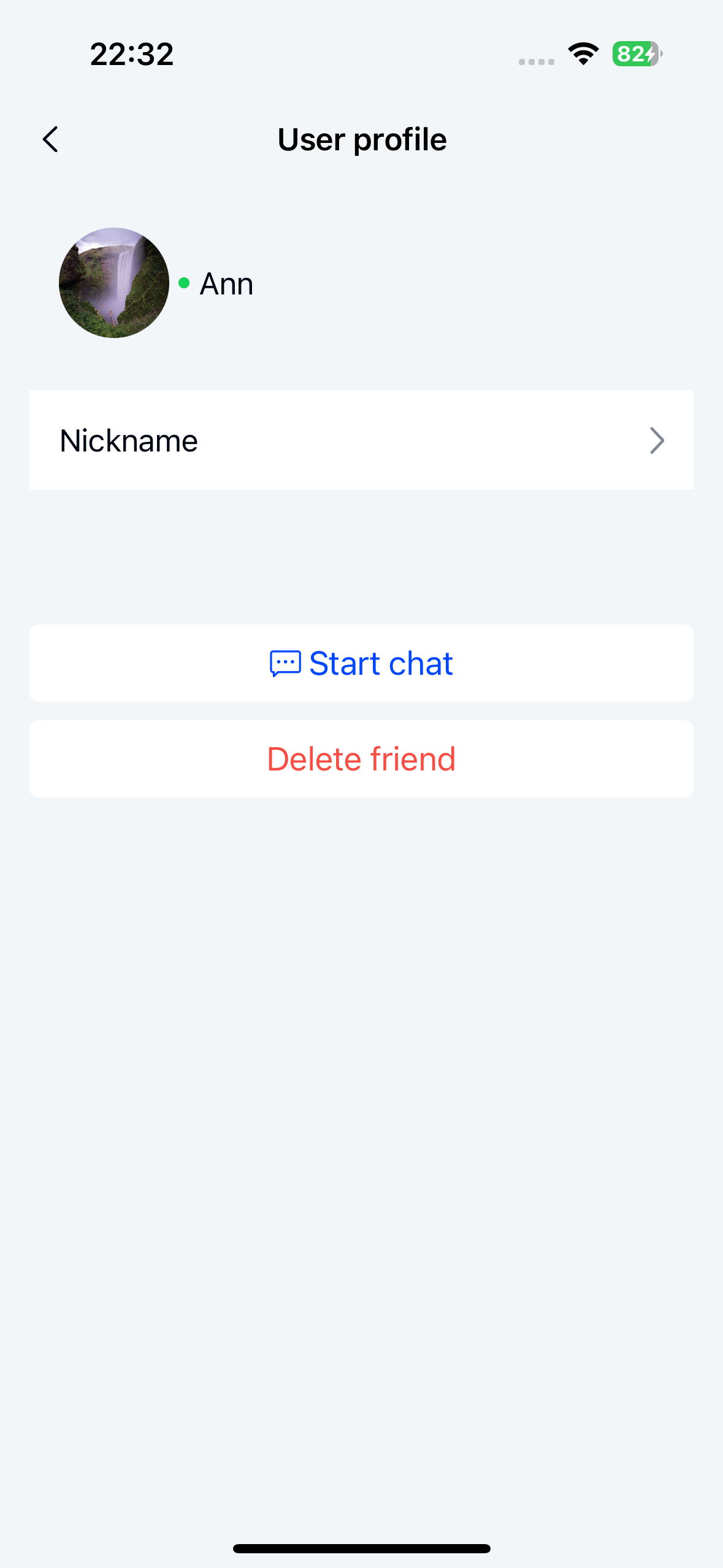
Enable user online status display
Enable user online status display through NCChatUIConfig before initialization.
You must enable this feature before calling NCChatUI.initialize(), or it will not take effect.
NCChatUIConfig.featureConfig().enableUserOnlineStatus(true);
Configuration guide
Requirements for friend online status
Meet both requirements:
-
Set Chat UI user online status display to
true. -
In the Nexconn Console, enable Enable auto messaging for presence update through Chat > Chat settings > Friend > Enable auto messaging for presence update.
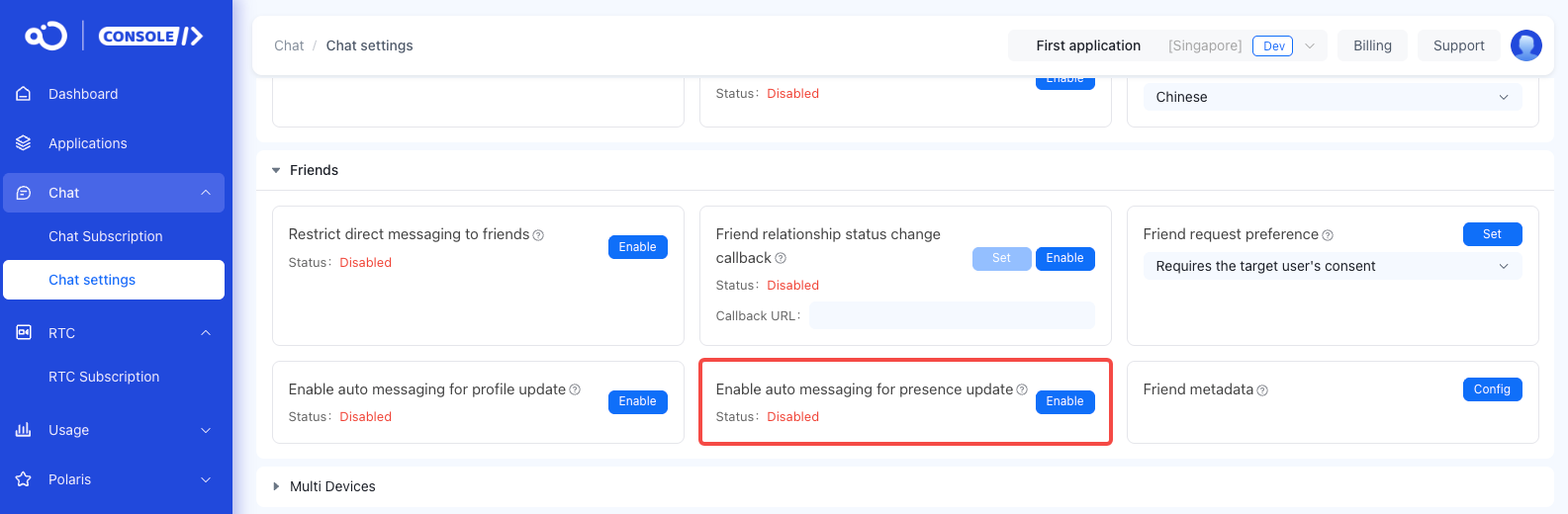
Requirements for non-friend online status
Meet both requirements:
- Set Chat UI user online status display to
true. - Enable Client user online status subscription. See Subscribe to user online status for implementation steps.
Chat UI online status indicator logic
Chat UI displays online status indicators when you meet these conditions:
- Set Chat UI user online status display to
true. - Enable at least one service:
- Client friend online status change notification
- Client user online status subscription
Important notes
- When you enable only one service:
- If you enable only Client friend online status change notification, non-friends always appear offline.
- If you enable only Client user online status subscription, friends always appear offline.
- Chat UI displays online status for the most recent 1000 direct channel conversations with non-friends. Conversations beyond this limit appear offline. This limitation applies only to non-friend direct channels.