Image and GIF messages
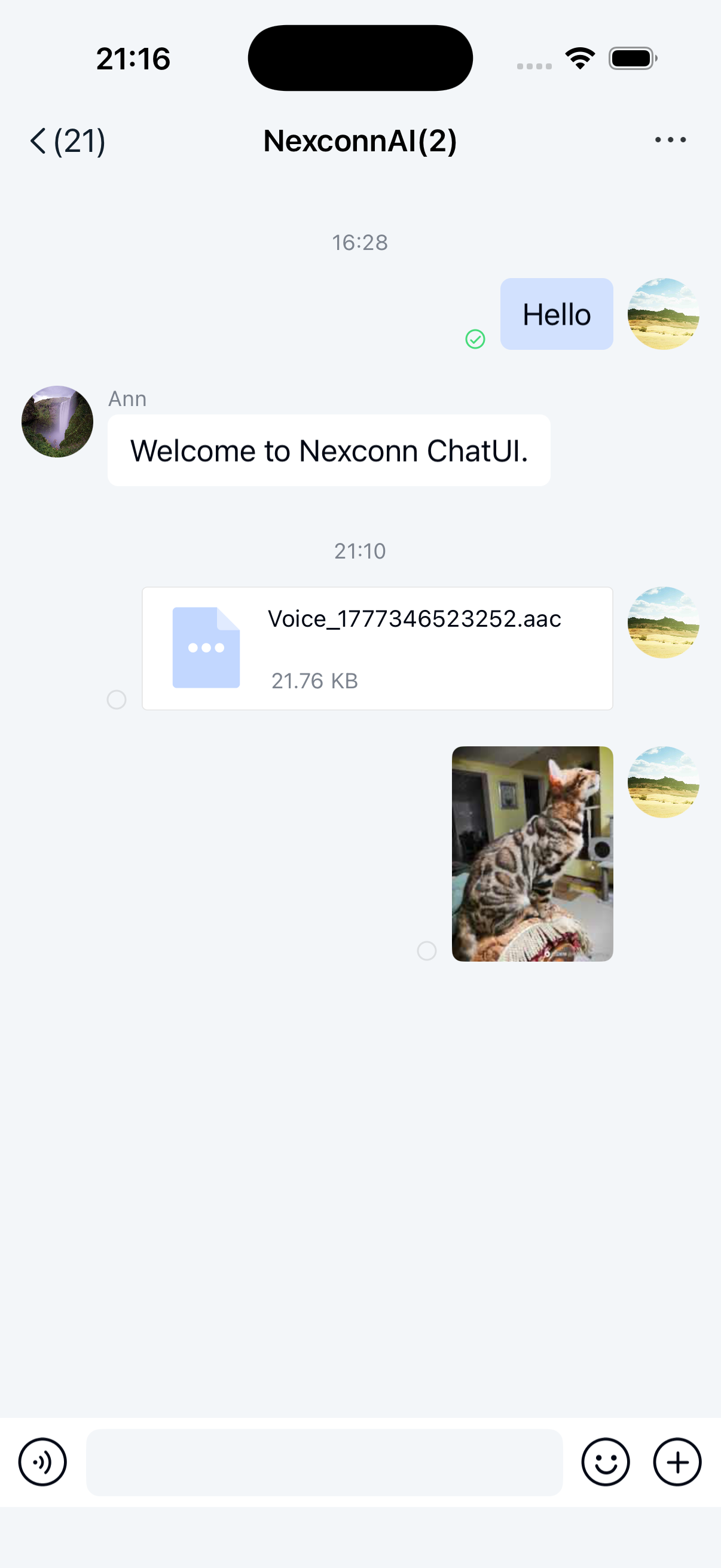
Users can send image messages and GIF messages through the built-in image plugin in Chat UI. Messages appear in the message list component on the channel page. By default, the SDK sends messages containing the following message content objects:
- Image message content class: [ImageMessage]
- GIF message content class: [GIFMessage]
The example images show square-cornered image messages. The current SDK displays image messages with rounded corners. If you need square corners, implement a custom UI.
Limitations
- Only local images and GIFs are supported for sending.
- GIF file size limit is 2 MB.
- Files in image messages and GIF messages are uploaded to Nexconn servers by default. To upload to your own server, intercept the message and handle the upload yourself. See Intercept messages.
Usage
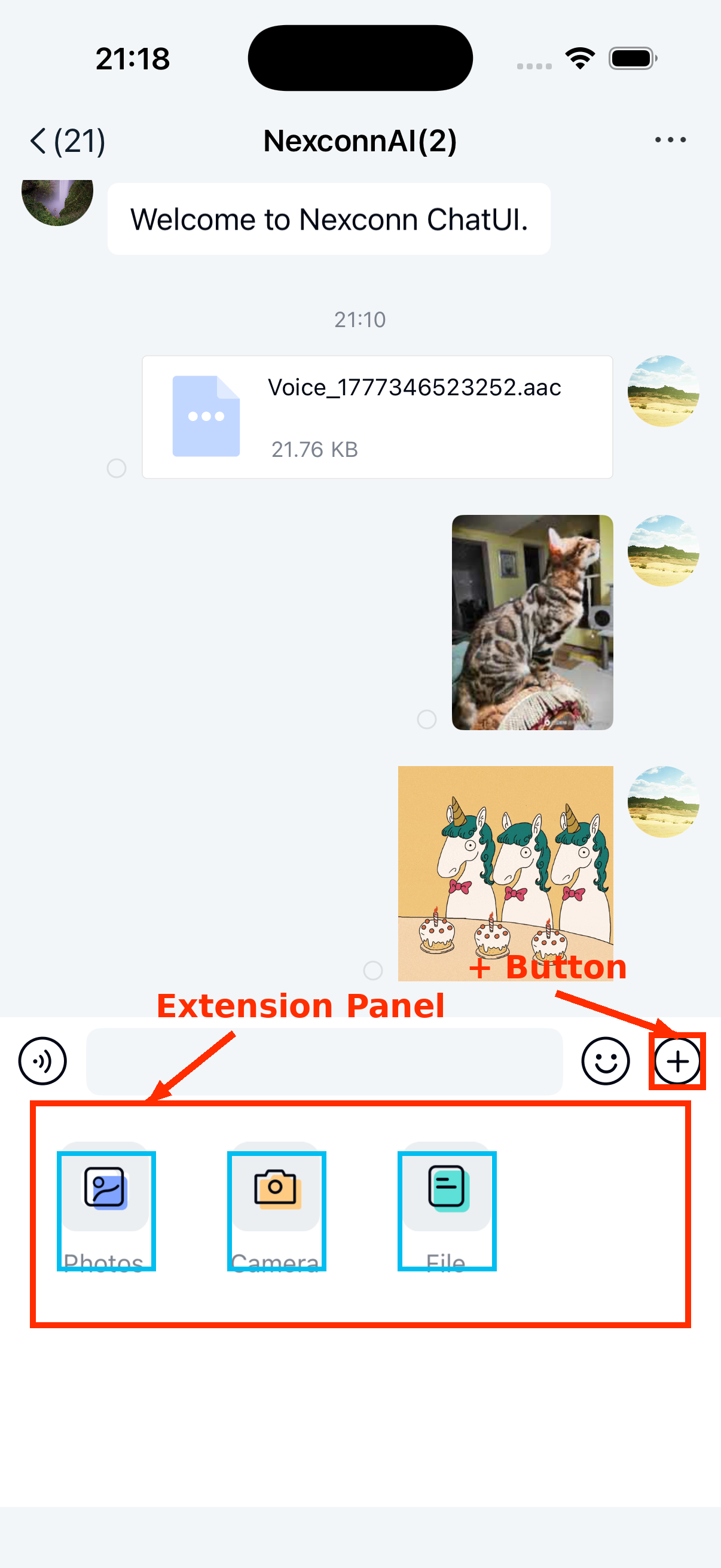
The extension panel includes an image message entry by default, implemented by the built-in ImagePlugin in Chat UI. Users can tap the + button on the right side of the input bar to expand the extension panel, then tap the image icon to open the local photo gallery and select images or GIF files to send. Refer to ImagePlugin.java in the Chat UI source code.
Customization
Change default file save location
The default nc_image_default_saved_path value in Chat UI is /Nexconn/Image/. In the current source code, long-press saving for received image messages and GIF messages uses the system public media directory instead of this configured path.
If your app calls Chat UI's image save path utility directly, you can create a res/values/nc_config.xml file in your application directory to change the configured path globally:
<string name="nc_image_default_saved_path">/Nexconn/Image/</string>
Adjust image compression quality
Before sending, images are compressed and thumbnails are generated for display in the chat interface. GIFs have no thumbnails and are not compressed.
- Image message thumbnails: The SDK generates a thumbnail at 30% of the original image quality that meets standard size requirements before uploading and sending. After compression, the longest edge does not exceed 240 px. Thumbnails are used for display in the chat interface.
- Images: When sending a message without selecting "send original image", the SDK generates a large image at 85% of the original image quality that meets standard size requirements before uploading and sending. After compression, the longest edge does not exceed 1080 px.
We do not recommend modifying the SDK's default compression configuration in most cases. To adjust SDK compression quality, see the knowledge base article How to modify the SDK's default image and video compression configuration.
Customize image and GIF message UI
Image messages and GIF messages use the following templates by default for display in the message list:
ImageMessageItemProviderGIFMessageItemProvider
To adjust the built-in message style, implement your own message display template class and provide the custom template to the SDK. All message templates inherit from BaseMessageItemProvider<CustomMessage>, and custom message display templates must also inherit from BaseMessageItemProvider<CustomMessage>. See Modify message display style.
You can also directly replace the style resources, string resources, and icon resources referenced in the message display templates. See ImageMessageItemProvider.java and GIFMessageItemProvider.java in the Chat UI source code.
Hide image entry in extension panel
Chat UI enables the image entry in the extension panel by default. To modify this dynamically, create a custom extension panel configuration class MyExtensionConfig that inherits from DefaultExtensionConfig and override the getPluginModules() method. See Input area.