Automatic moderation
Automatic moderation is a managed review service that reviews messages before delivery. It identifies risky content including political, prohibited, sexual, violent or terrorist, abusive, advertising, and off-platform solicitation content.
Automatic moderation does not replace the profanity filter. Enabling automatic moderation does not change your profanity word list, and disabling the profanity filter does not disable automatic moderation rules.
Supported scope
| Area | Support |
|---|---|
| Default moderation languages | English and Arabic |
| Channel types | Direct, group, open, and community channels |
| Message type options | Text, image, GIF, voice, and video |
| Built-in message types | RC:TxtMsg, RC:ReferenceMsg, RC:ImgMsg, RC:GIFMsg, RC:VcMsg, RC:HQVCMsg, and RC:SightMsg |
The Console message type options map to built-in message types as follows:
| Message type option | Built-in message types |
|---|---|
| Text | RC:TxtMsg, RC:ReferenceMsg |
| Image | RC:ImgMsg, RC:GIFMsg |
| Voice | RC:VcMsg, RC:HQVCMsg |
| Video | RC:SightMsg |
Enable automatic moderation
Before you enable automatic moderation, check the environment requirements:
- In the Development environment, you can enable automatic moderation for trial usage.
- In the Production environment, you must have a valid payment method before you can enable automatic moderation.
-
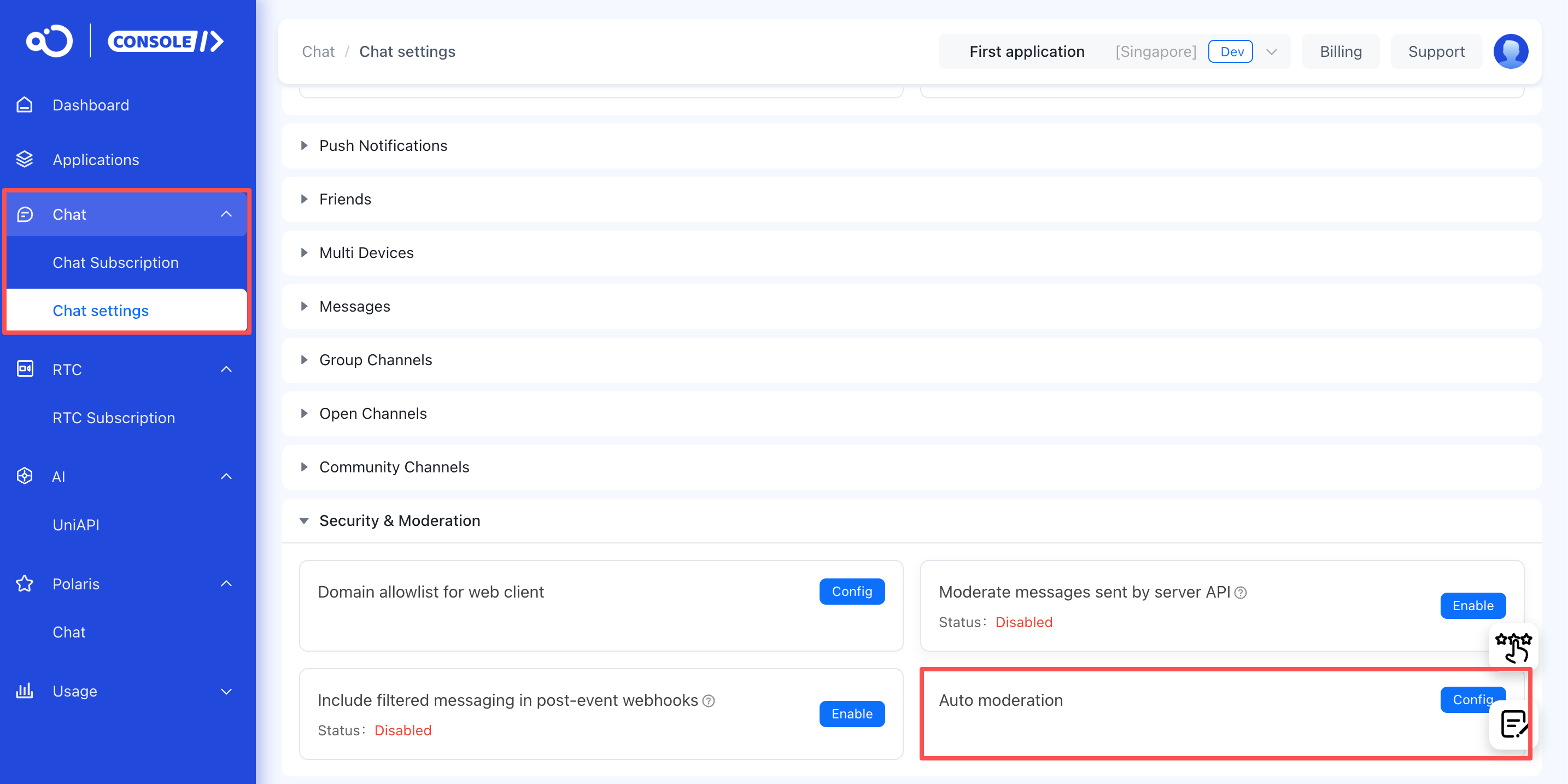
In the Console, open Chat > Chat settings > Security & Moderation.
-
Enable Auto moderation.
-
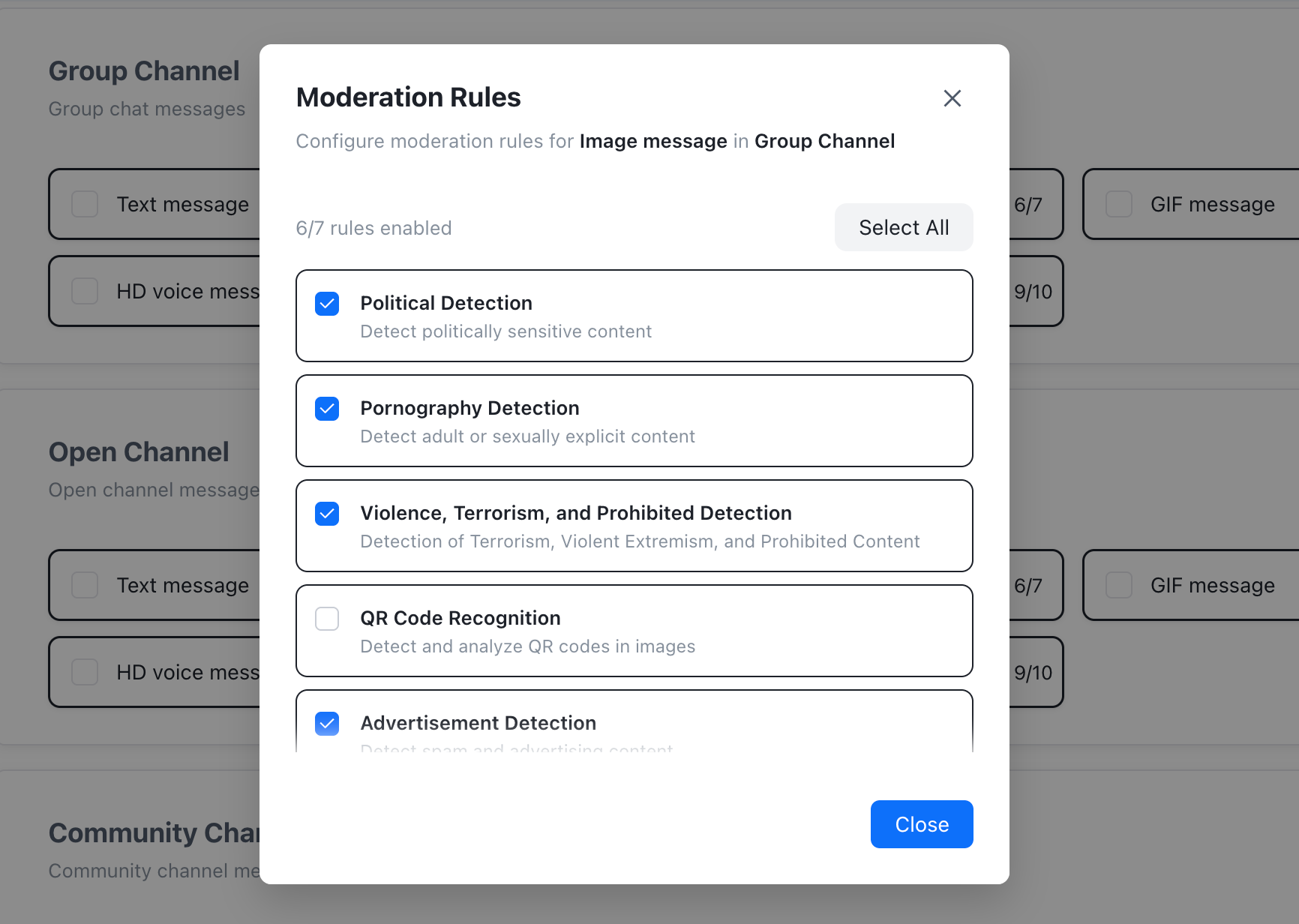
Configure the channel types and message types that you want to moderate.
-
For each enabled message type, select the moderation rules that apply to your app.
-
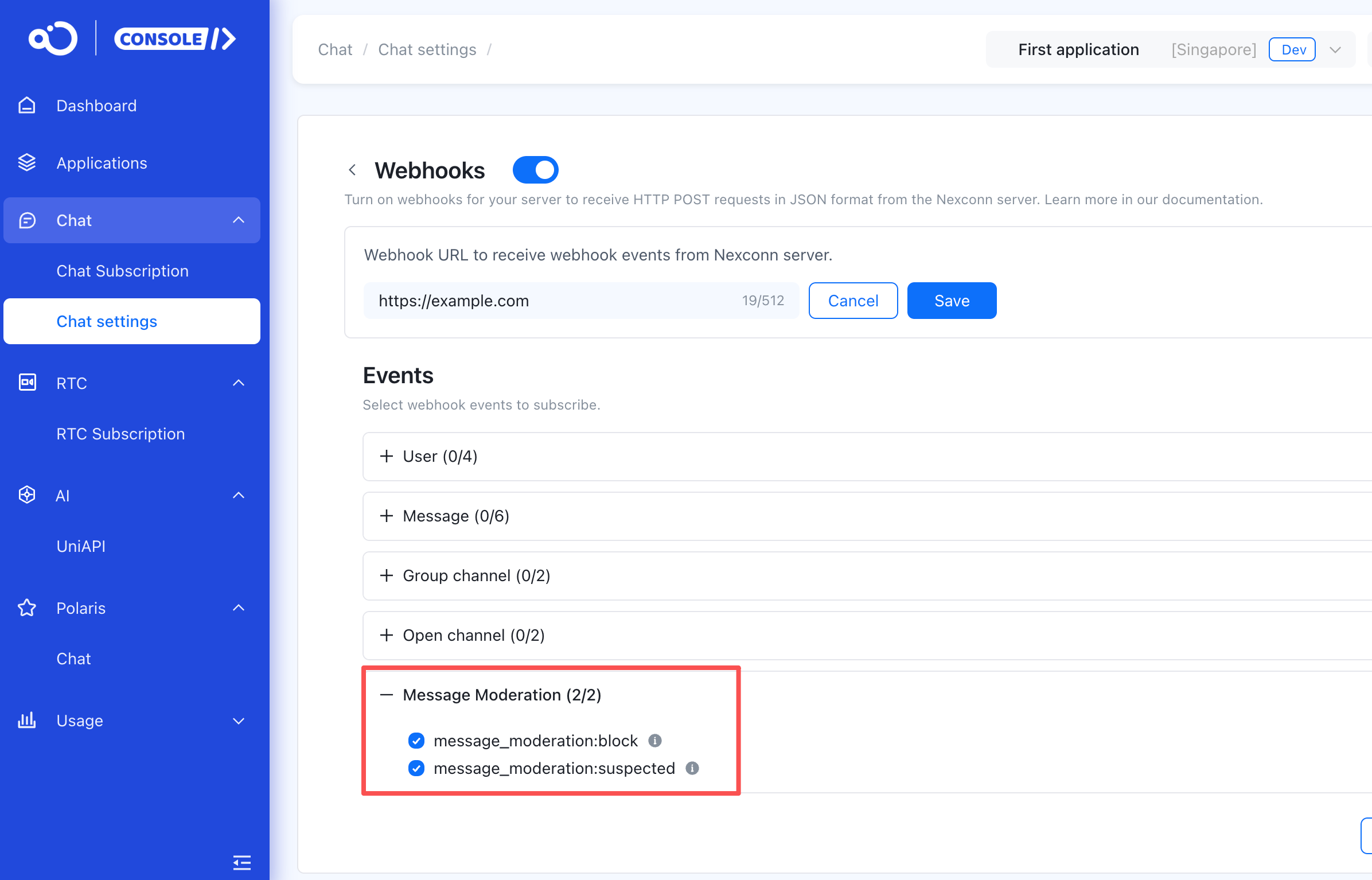
Optional: Configure moderation result webhooks if your server needs to receive blocked or suspected moderation results.
Configuration behavior
Enabling Auto moderation only turns on the service. It does not automatically enable moderation for every channel or message type.
Moderation takes effect only for the channel type and message type combinations that you enable. For example, to moderate image messages in direct channels, enable the direct channel type and the image message type.
For each message type that you enable, keep at least one moderation rule selected. For video moderation, rule selection applies to both the image and audio content in the video. You cannot configure separate image-only and audio-only rule sets for the same video message.
The Moderate messages sent by server API setting controls whether messages sent through the Server API are evaluated by automatic moderation. It is independent from the Auto moderation service switch and from the profanity word list.
Moderation results
| Result | Meaning | Default handling |
|---|---|---|
PASS | No violating content identified. | The message continues through the delivery flow. |
REJECT | Violating content identified. | The message is blocked and not delivered. |
REVIEW | Suspected violating content identified. | Nexconn reports the result as a suspected moderation event. Use your own policy or manual review workflow to decide follow-up action. |
Text and image moderation results come from a synchronous provider response. Voice and video moderation results come from an asynchronous provider response.
When a message is blocked, the sender is not notified by default.
Billing and usage
For billing rates, see Pricing plans.
View moderation usage in the Console under Usage > Chat > Auto moderation.
Moderation result webhooks
To receive moderation decisions on your server, enable Webhooks and subscribe to the moderation result events. For setup and payload details, see Moderation result events.